Smart layers
The following elements in the left panel provide the user with ways of performing a high level analysis on the actual detected objects or tracks. These include: View detected-tracks, View density and View flow control.
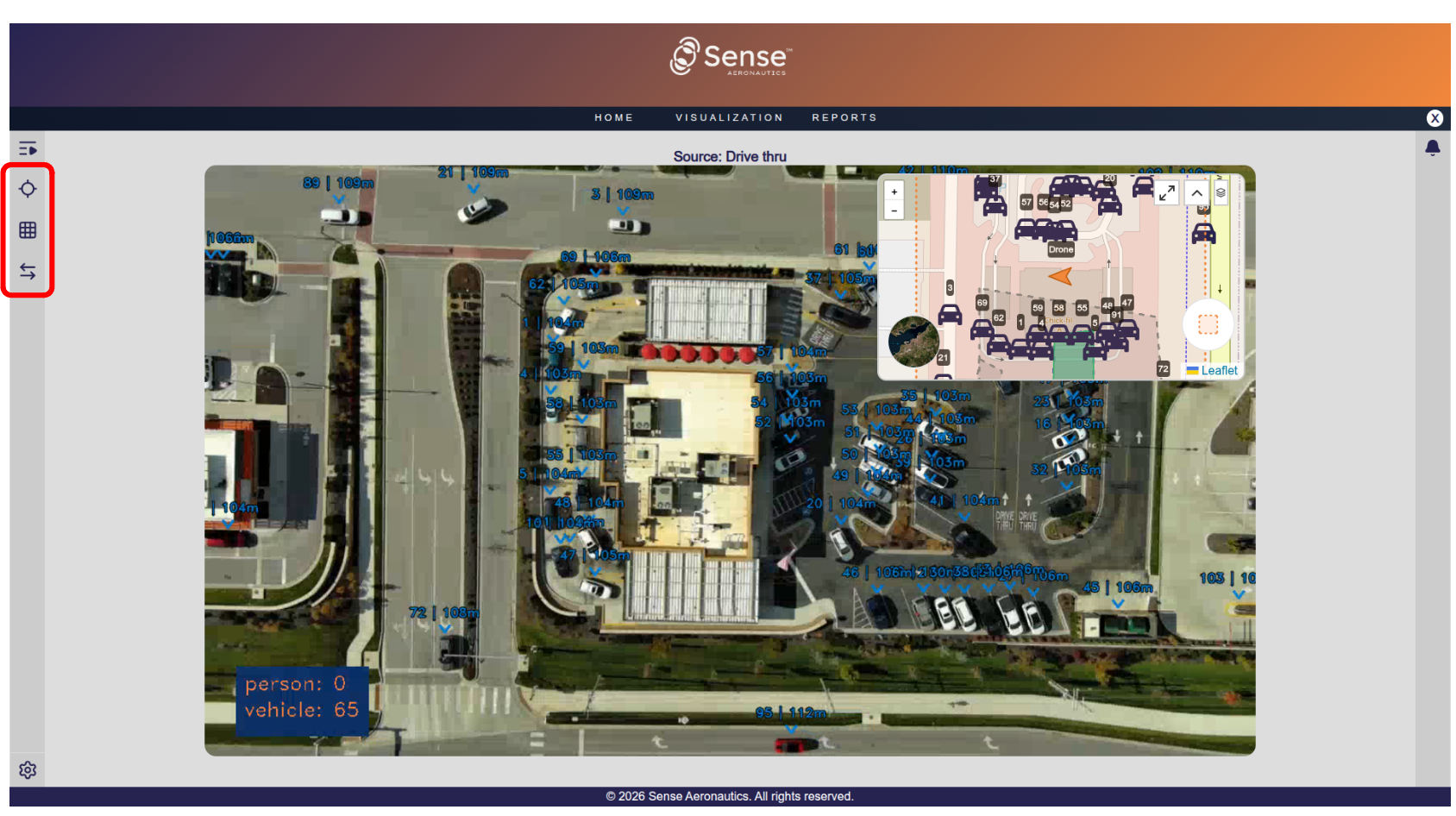
View detected-tracks
The left sidebar lists all the detected tracks, whether they are currently active or inactive.
The panel will shows pinned tracks on top of the list, and the rest of the tracks below the pinned ones. Tracks with a green border are those which are still active.
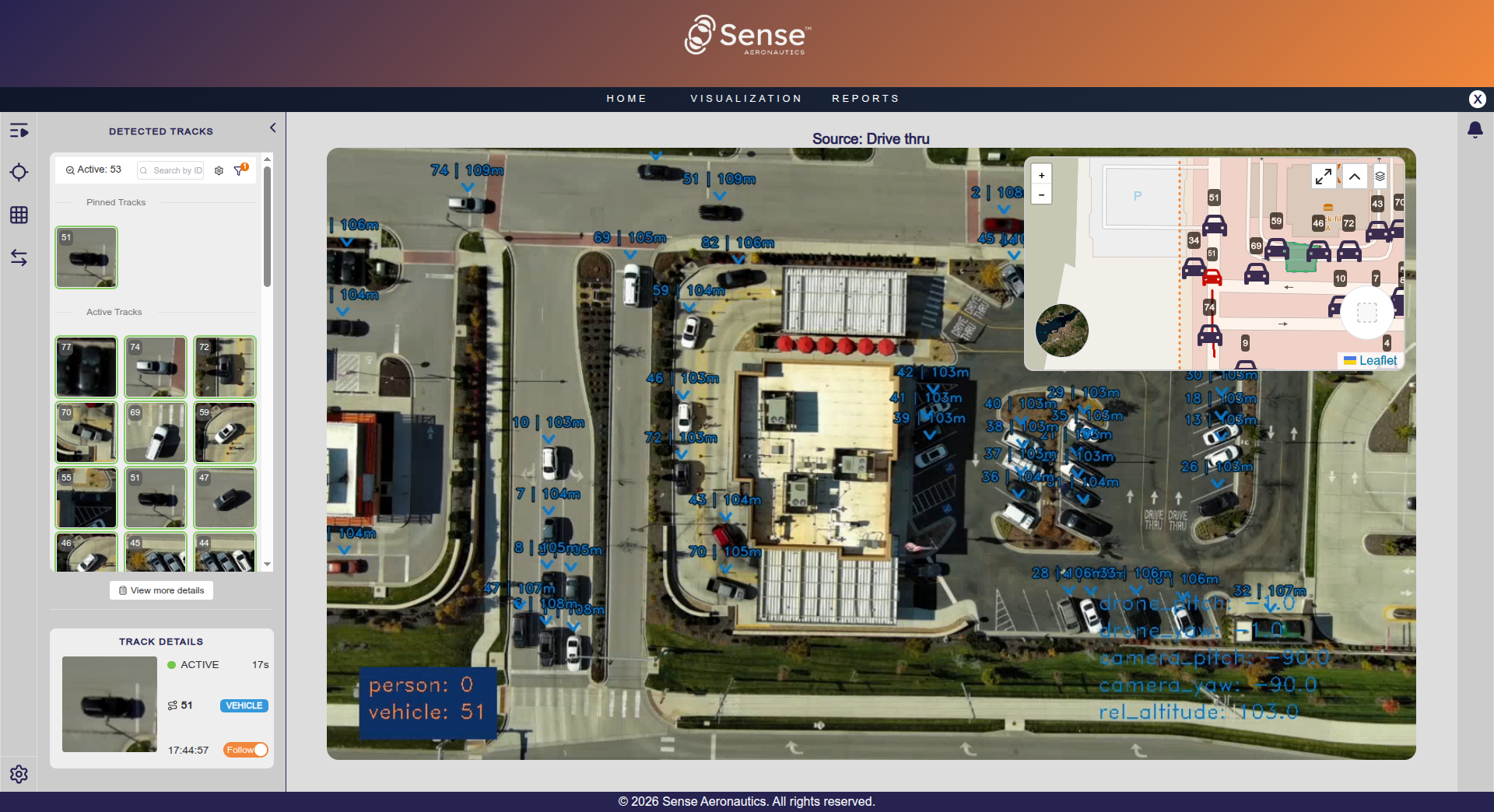
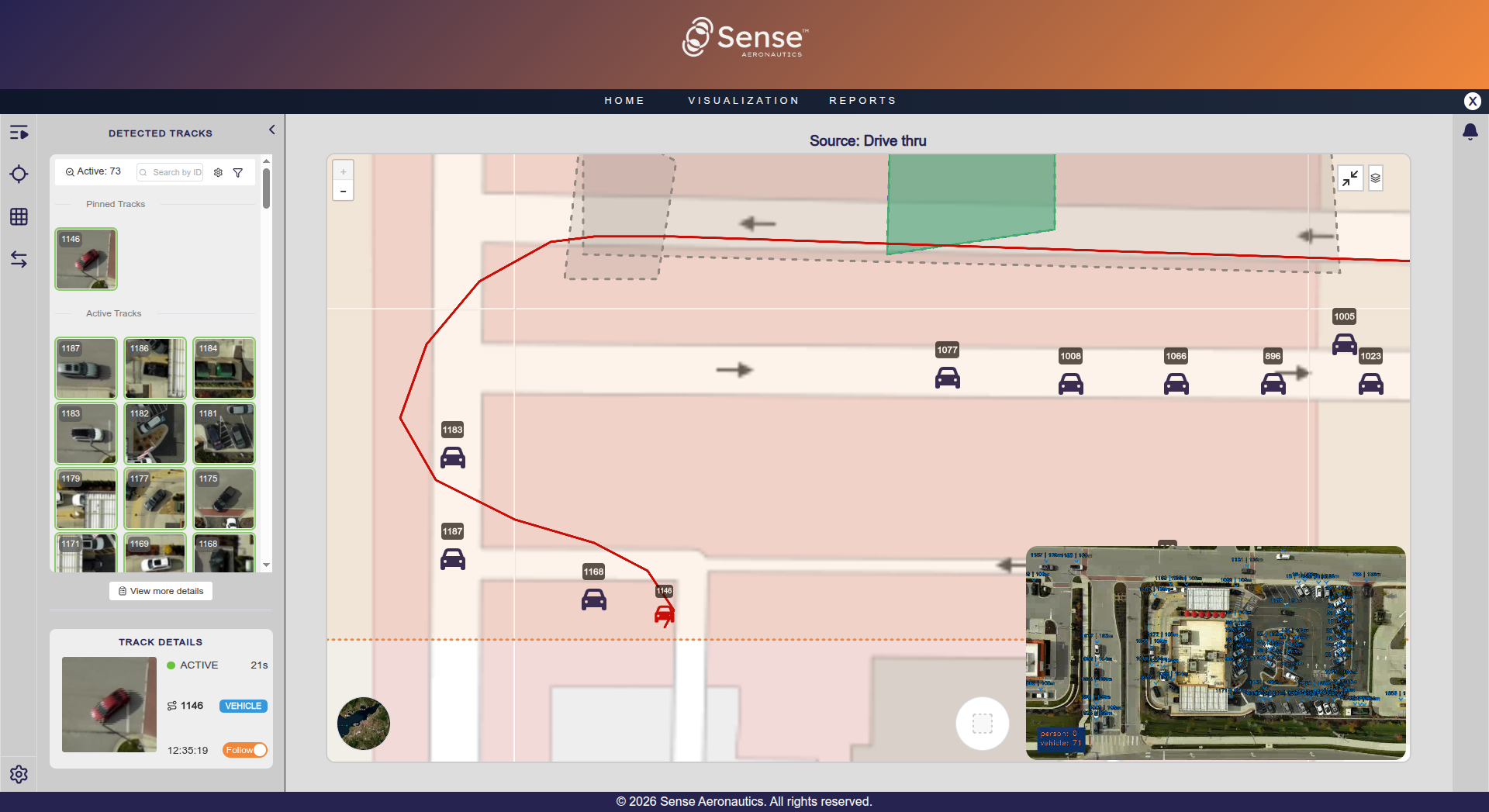
Clicking on an active track will pin it to the top side of the bar and start tracking it in real time. This means its icon in the map will be highlighted and its whole path will be shown and painted in the map.
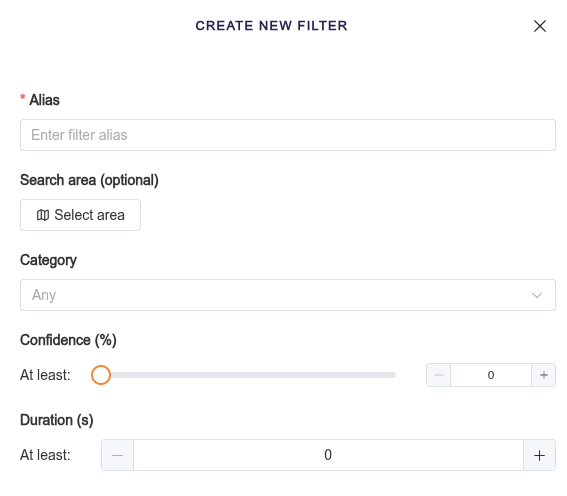
Filter may be used to avoid showing all the detected tracks at the same time. Tracks can be filtered by category, confidence, their duration as an active track or even location by creating a search area.
When clicking on any track a quick information chart will be displayed on the bottom side of the "Detected Tracks" pannel with its details.
View density
The View density layer provides an overview of how occupied a selected area is over time. The area is divided into a grid of cells, with the cell size being configurable. Each cell is color-coded according to its occupancy level, making it easy to identify areas with higher or lower activity at a glance.
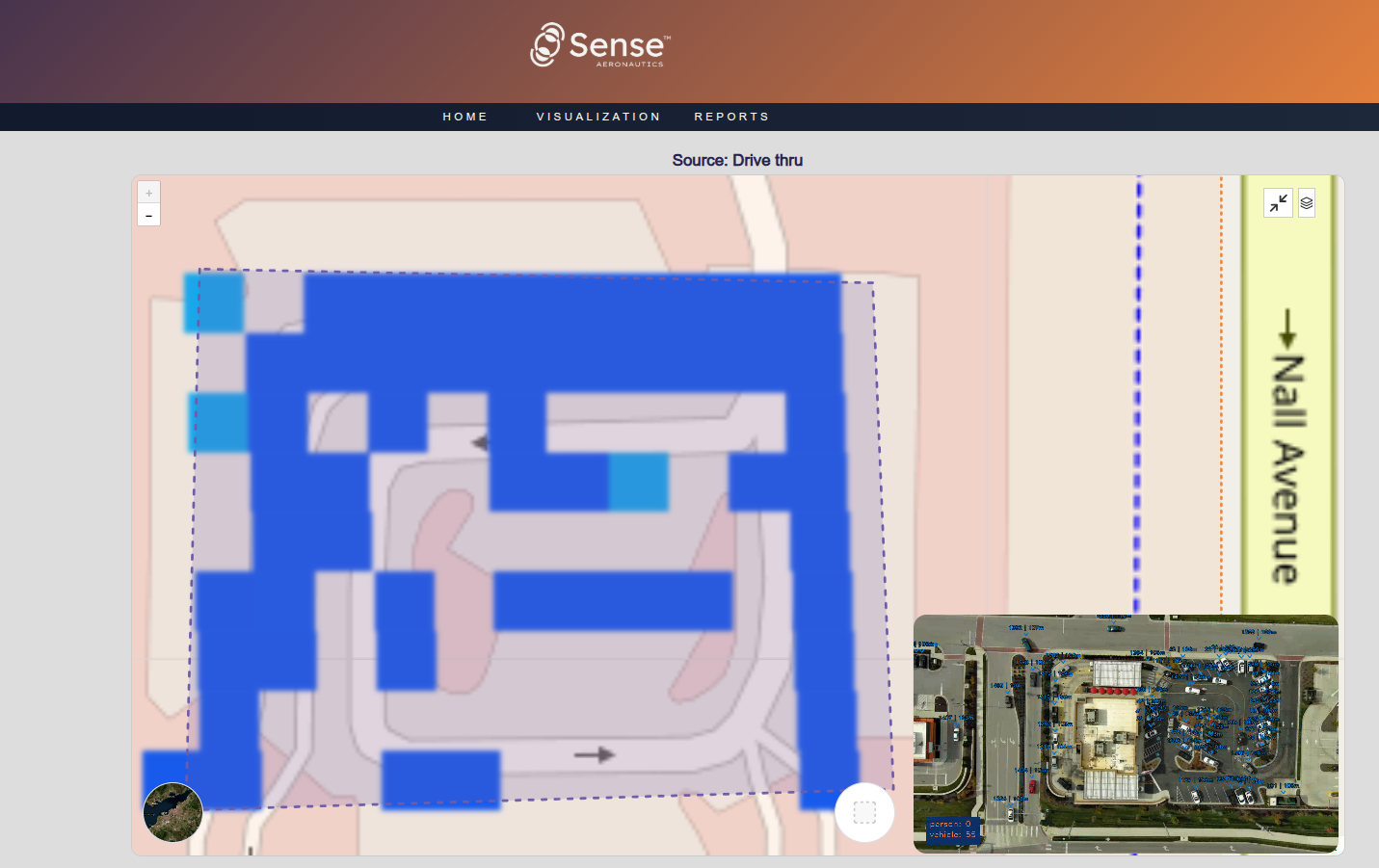
The density layers are fully configurable. Users can select which tracks are filtered by the layer, define the conditions that trigger an alert, and configure the parameters for both the alerts and the grid.
Changing these parameters directly affects how the grid behaves and the information displayed, allowing users to tailor the density layer to their specific needs. Whenever the configuration of an alert is modified it will be automatically restarted so that the change is applied. The alert parameters can be changed at any time by editing the alert configuration itself.
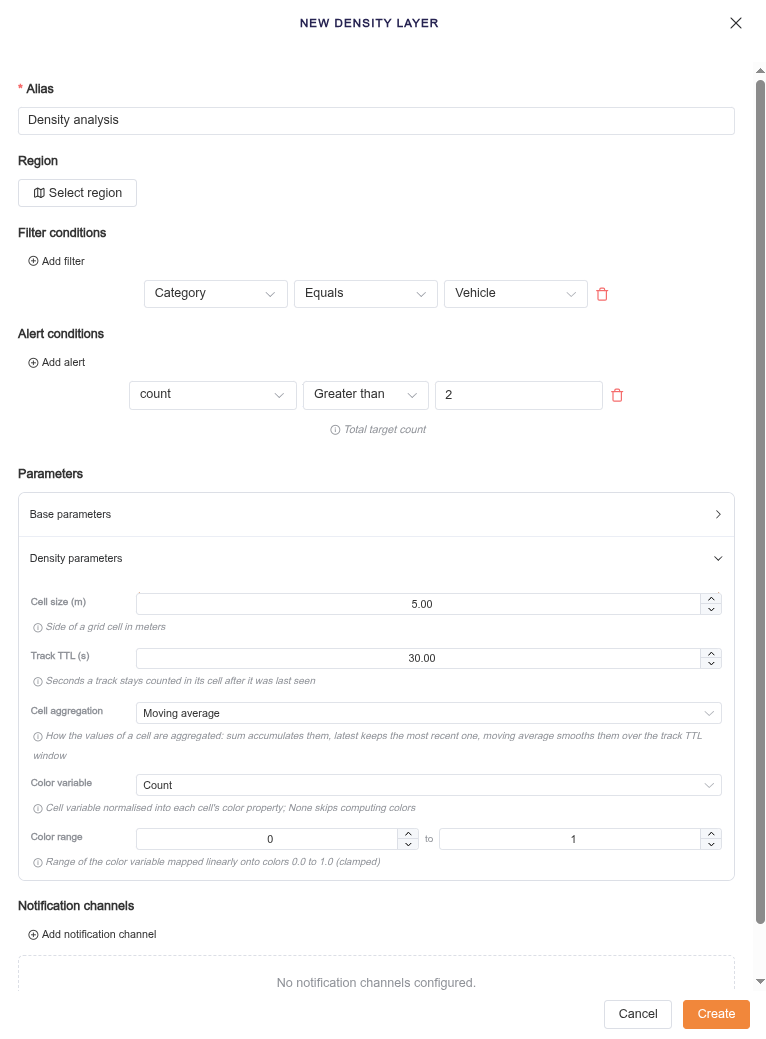
Moreover, a notification channel can be configured so that the user can receive them via MQTT or Webhook.
View flow-control
The Flow control layer allows users to select a specific area and monitor the movement of tracks entering and leaving it. It provides information about the number of tracks currently within the selected area, as well as how many tracks enter and exit. It also provides additional information about the speed of tracks within the area.
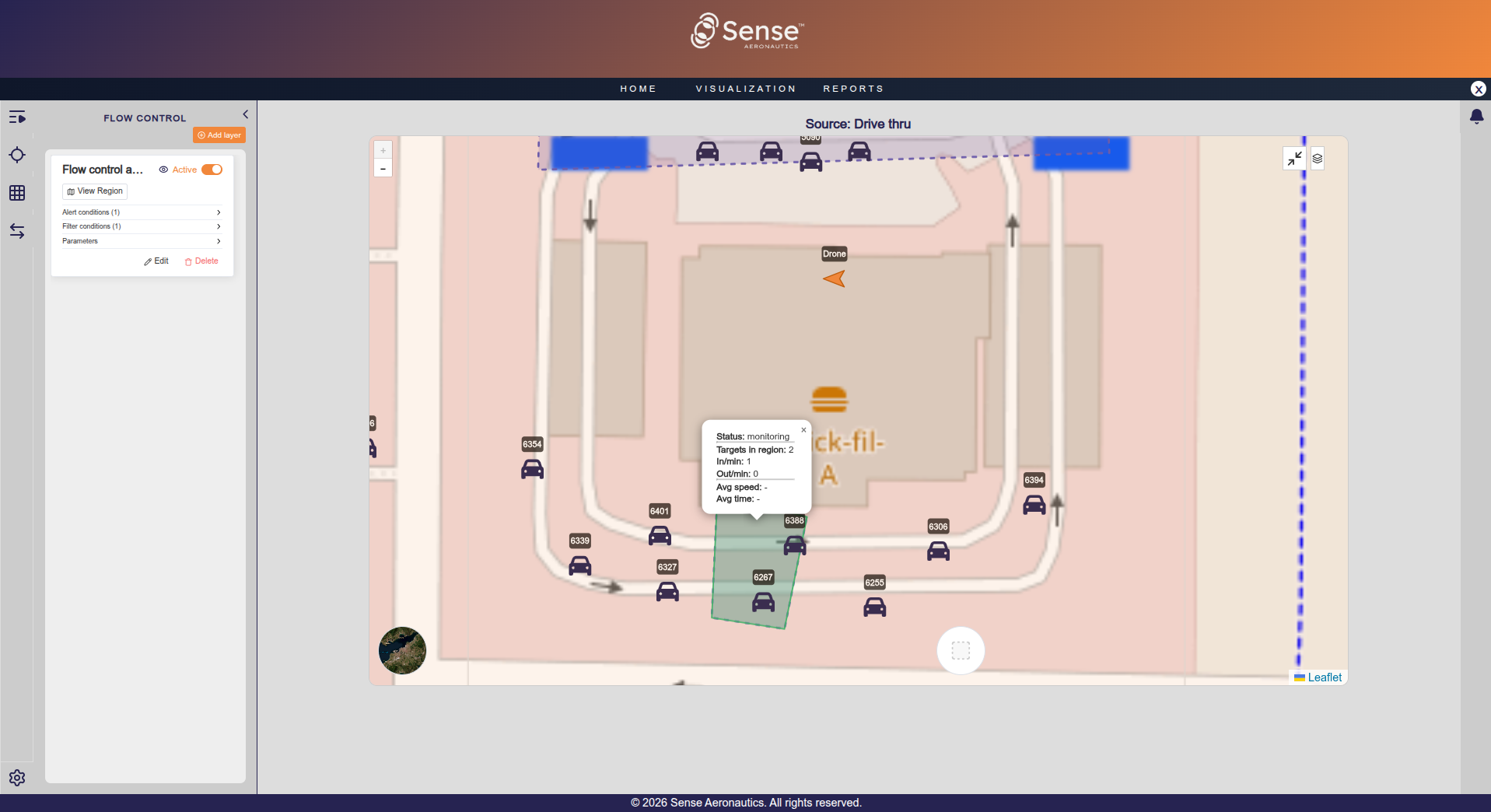
The Flow control layer is configured in a similar way to the Density layer. Whenever the configuration of an alert is modified it will be automatically restarted so that the change is applied. Its parameters can be edited at any time, allowing users to adjust the configuration and change the information displayed according to their needs.
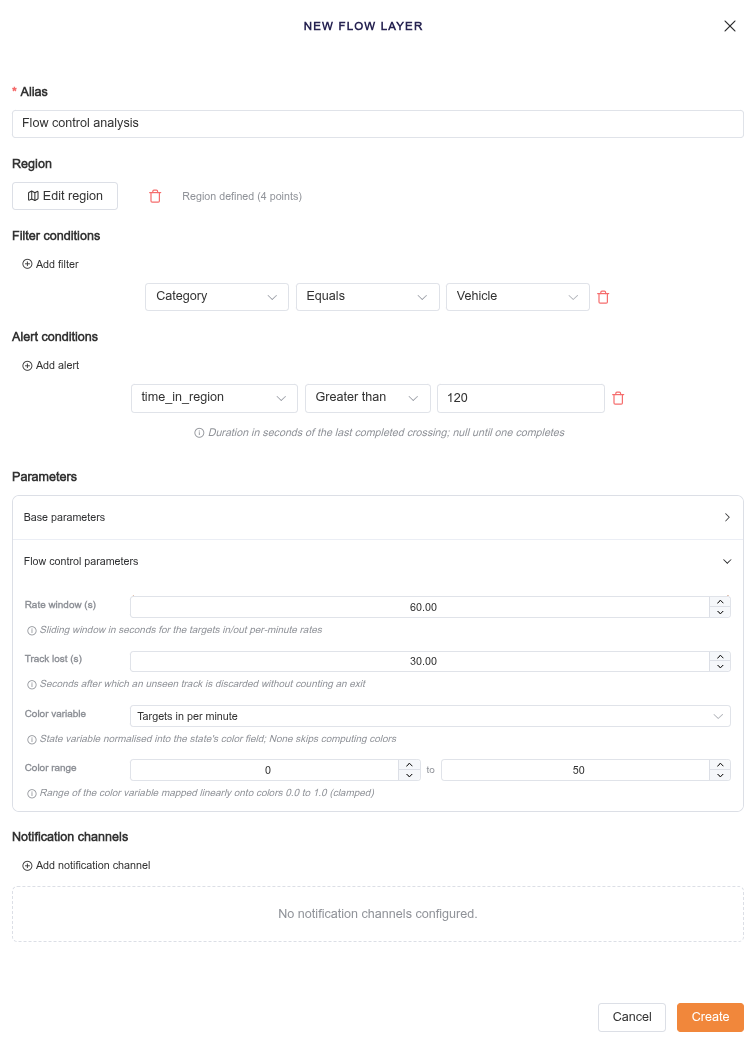
The flow control layer configuration also allows to setup a notification channel via MQTT or Webhook to receive the alert notifications.