DJI FlightHub 2 Integration
Flighthub Sync integration
This guide describes how to configure DJI Flighthub 2 for forwarding the telemetry and livestreaming to Sense Aeronautics platform.
Prerequisites
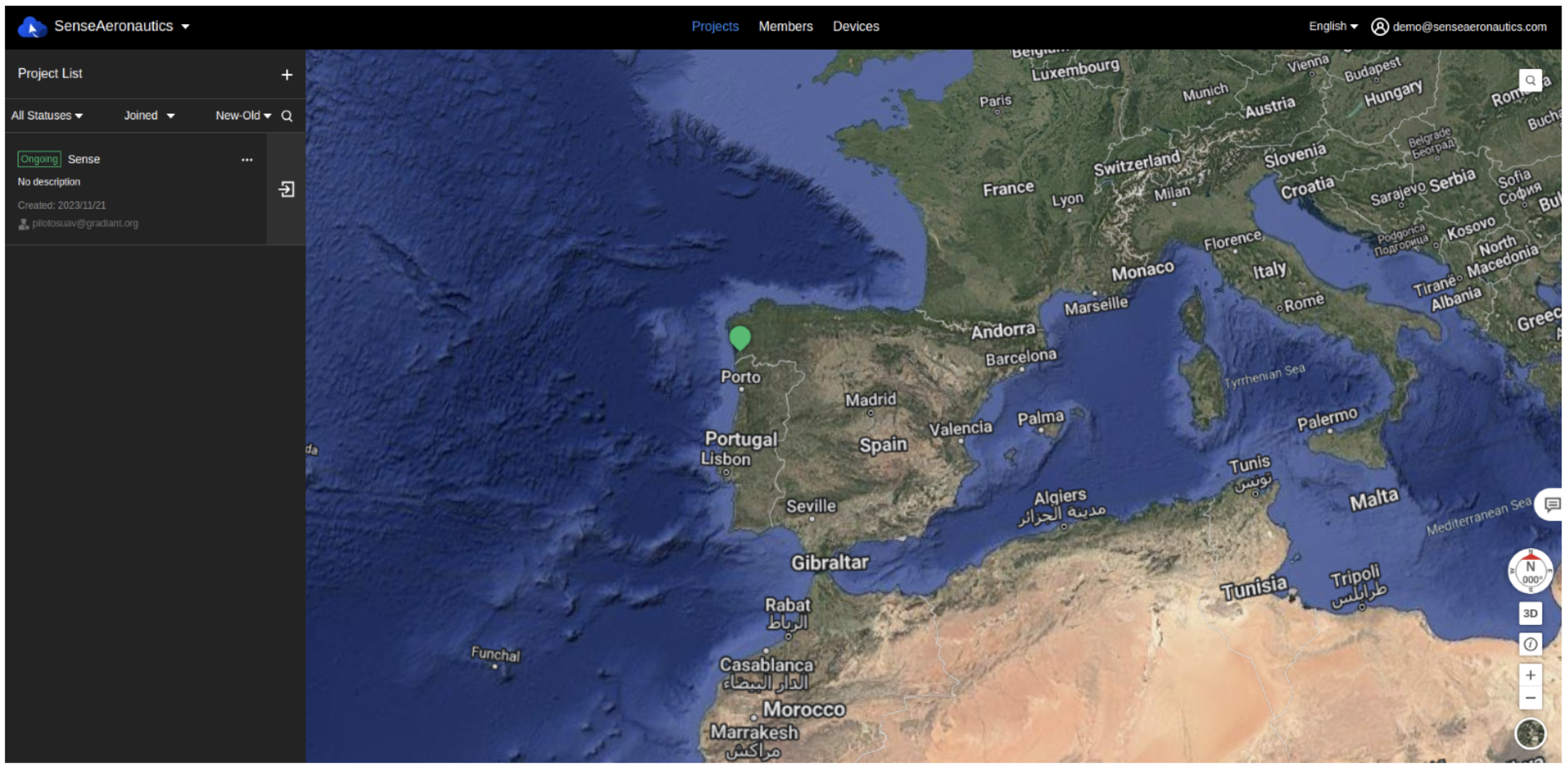
- Log into your FlightHub 2 (FH2) account: Navigate to https://fh.dji.com/login and sign in with your credentials. If you are using the On-Premises version, sign in where FH2 OP is deployed.
- Access your organization settings: Click on your account email in the top-right corner, select
My Organization, then click the gear icon to open settings.

Note
If you do not have an organization yet, you will need to create one before proceeding.
Note
You might need to have Super-Admin or Organization Admin privileges to be able to access here.
Telemetry Data Forwarding
Flighthub 2 allows to forward the telemetry to a third-party MQTT server. Sense Aeronautics uses this information for estimating target location and improving the performance.
Configuration on the Cloud platform
Telemetry in the cloud platform is currently configured via FlightHub Sync Beta. This functionality is expected to be deprecated in the near future and will likely transition to FlightHub Sync. If this feature is not available, please refer to the instructions under “Configuration on the On-Premises deployment.”
Navigate to the FlightHub Sync Beta menu in your organization settings:

and click edit in the selected dropdown:

The drone sends its telemetry data via MQTT, hence, a MQTT broker must be configured within the FlightHub Sync Beta menu. Sense Aeronautics provides its own MQTT broker for this purpose. The following parameters belong to the Sense Aeronautics' MQTT broker (note that Username and Password are empty):
| Field | Value |
|---|---|
| MQTT Host | 34.147.91.49 |
| MQTT Port | 1883 |
| Username | |
| Password |
Configuration on the On-Premises deployment
Since On-Premises deployments may not have internet access, both the MQTT broker and the webhook endpoint must be reachable within your deployment network. You can use your own broker or the one provided by Sense Aeronautics (shown in the configuration below).
In your organization settings (gear icon), open the FlightHub Sync section and click on MQTT Bridge Configuration:

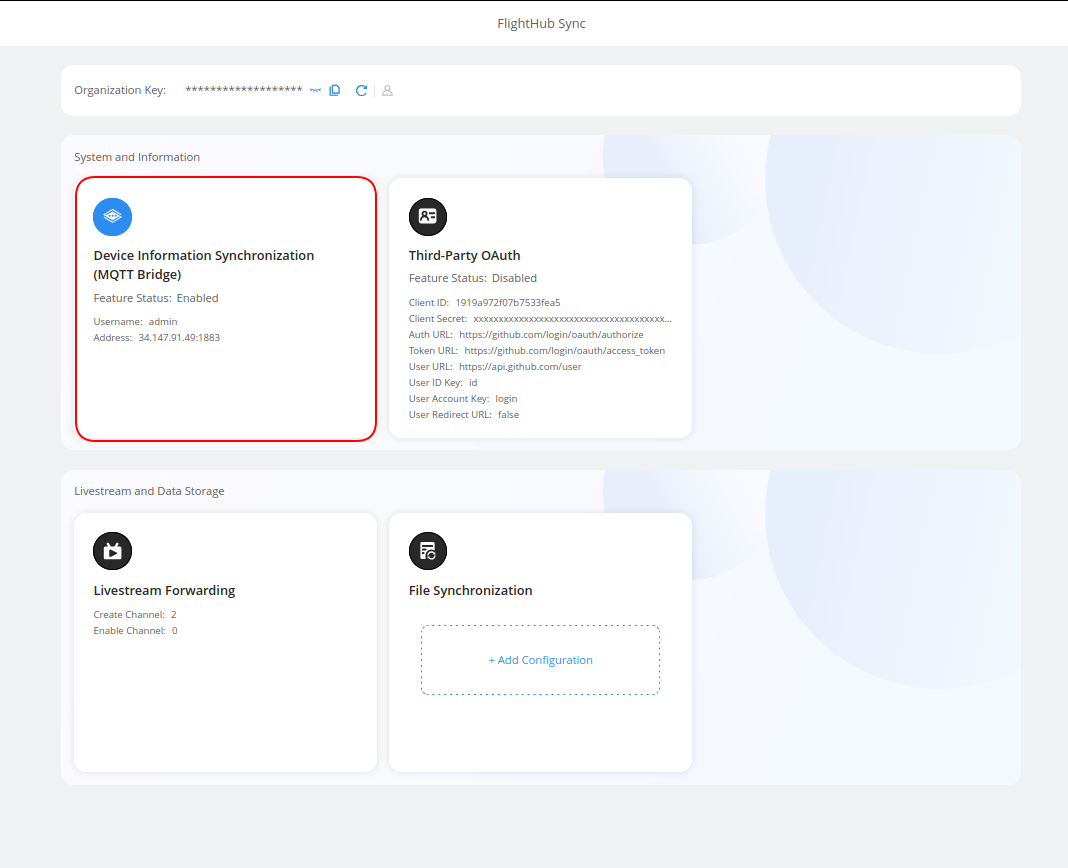
Under Third-Party MQTT Information, fill in the following fields:
| Field | Value |
|---|---|
| Username | admin |
| Password | |
| Protocol Version | mqttv4 |
| Address | 34.147.91.49:1883 |
| Client ID | fh2-bridge |
| Media File Upload Path | FlightHub |
Note
The Password field is empty.
Under Device Online and Offline Interface Information, fill in the following fields:
| Field | Value |
|---|---|
| URL | http://34.147.91.49:5433 |
| Method | POST |
| Path | /webhook |
| Body Template | {"username": "${username}", "timestamp": "${timestamp}", "reason": "${reason}","action": "${event}", "clientid": "${clientid}"} |
Once all fields are filled in, click Connectivity Check to verify that the webhook endpoint is reachable. If the check passes, click Save to apply the configuration.
Livestream Forwarding
Livestream forwarding is handled by FlightHub Sync in both Cloud and On-Premises versions. Navigate to the FlightHub Sync configuration in your organization settings:

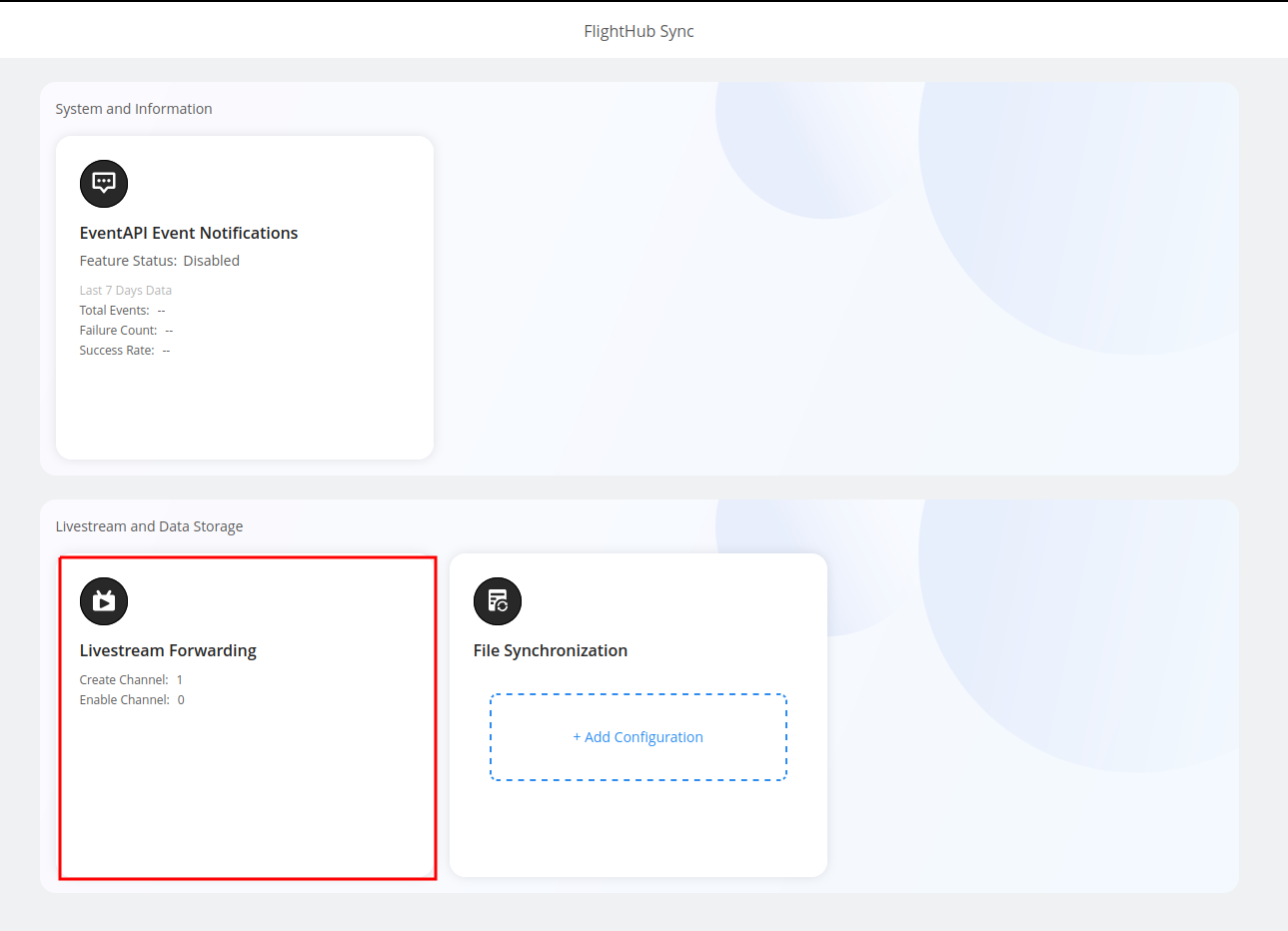
To add a livestreaming entry, complete the following fields:
| Field | Description |
|---|---|
| Forwarding Channel Name | A descriptive name for the livestreaming entry |
| Forwarding Channel Type | RTMP |
| Server Address | rtmp://media.senseaeronautics.com:1935/{SN}/{path} |
| Device Name | The device whose stream you want to forward. The device must be bound beforehand in order to appear in the list. |
| Stream Source | The payload to stream. Only relevant for multi-payload drones such as M300, M350, or M400 (e.g. FPV and H20N). |
Note
The server address is an example. You can forward the stream to any path not currently in use. The path should include a unique identifier, such as the drone’s serial number (SN). Contact the Sense Aeronautics support team if you have any constraints related to the server address.
Note
If you are using a single-payload drone such as M4T or M3T, the Stream Source option does not matter — it will stream whatever is visible on the RC. It only matters for multi-payload systems such as the M300 with an H20N. If you want to stream the H20N, do not select FPV in the Stream Source field.
Once all fields are completed, click Confirm to save the entry. Any configured Forwarding Channel can be toggled ON or OFF. When toggled ON, the drone will start streaming as soon as it connects to FlightHub. To stop streaming, toggle the Forwarding Channel OFF.
Next Steps
Now that FlightHub Sync is configured, register the drone stream in the Sense Aeronautics web client. Navigate to the Add Source page and open the Stream tab.
Use the exact same values set in the previous sections:
- Source Alias –
Drone <SN>(your drone's serial number) - Source URL –
rtmp://media.senseaeronautics.com:1935/<SN>/<path>(same path configured in the Server Address in Livestream Forwarding) - Check Add telemetry and fill in the MQTT fields with the same broker values configured above — host
34.147.91.49, port1883, topicthing/product/<SN>/osd, formatDJI.
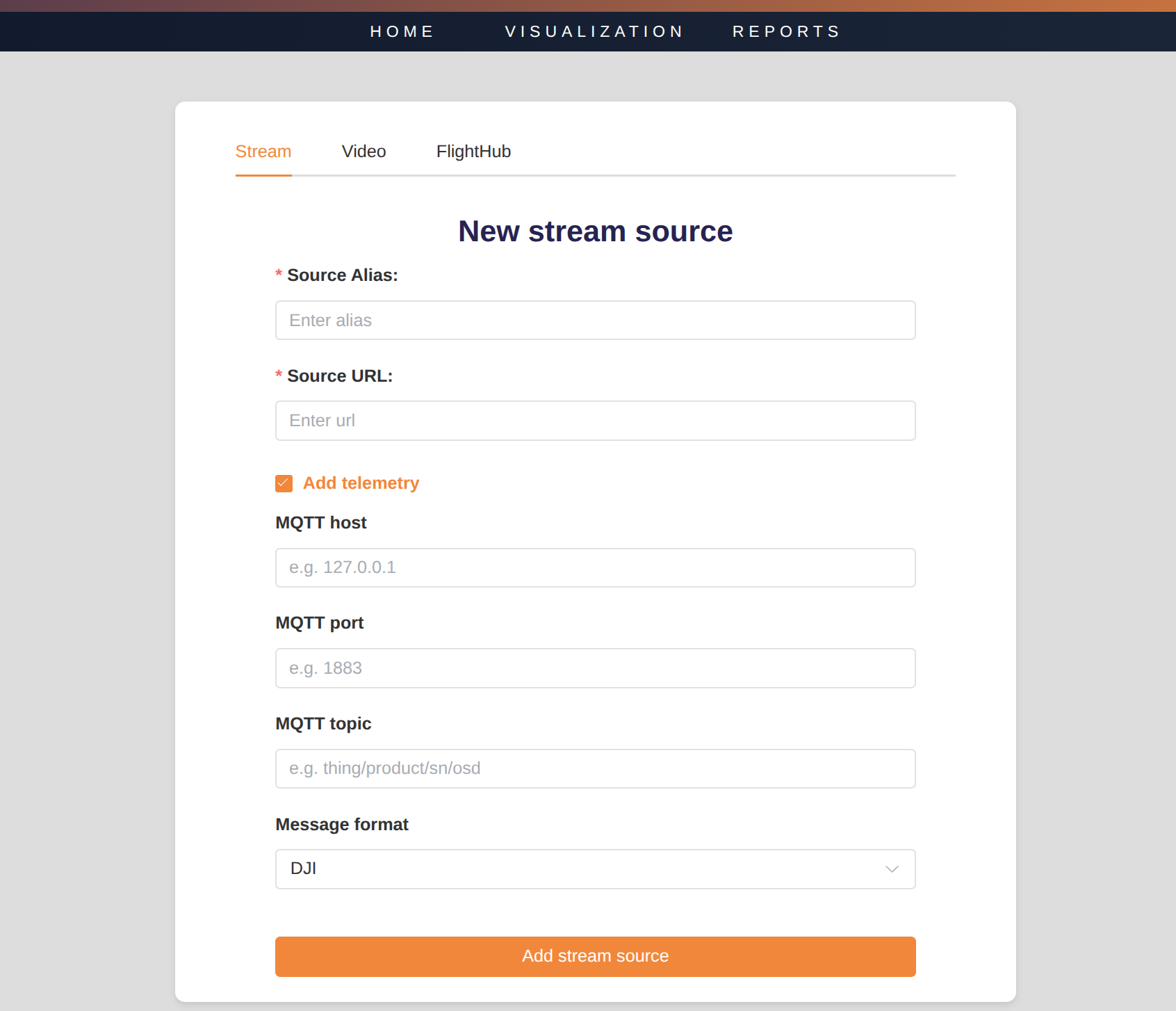
For a full overview of the Add Source page, see the Add sources guide.