Sense Stream RC App
This Third-Party Cloud Service integration enables live video streaming and AI-based video processing directly from a DJI drone through a DJI RC device.
The application allows operators to initiate real-time video transmission from the drone and optionally process the live stream using Sense Aeronautics' AI service. The system provides stream management control and real-time visualization URLs for both raw and AI-processed video outputs.
Accessing Sense Stream from the DJI Remote Controller
From the DJI RC home screen, open the DJI Pilot 2 application.
In the main screen, tap the Cloud Service button.
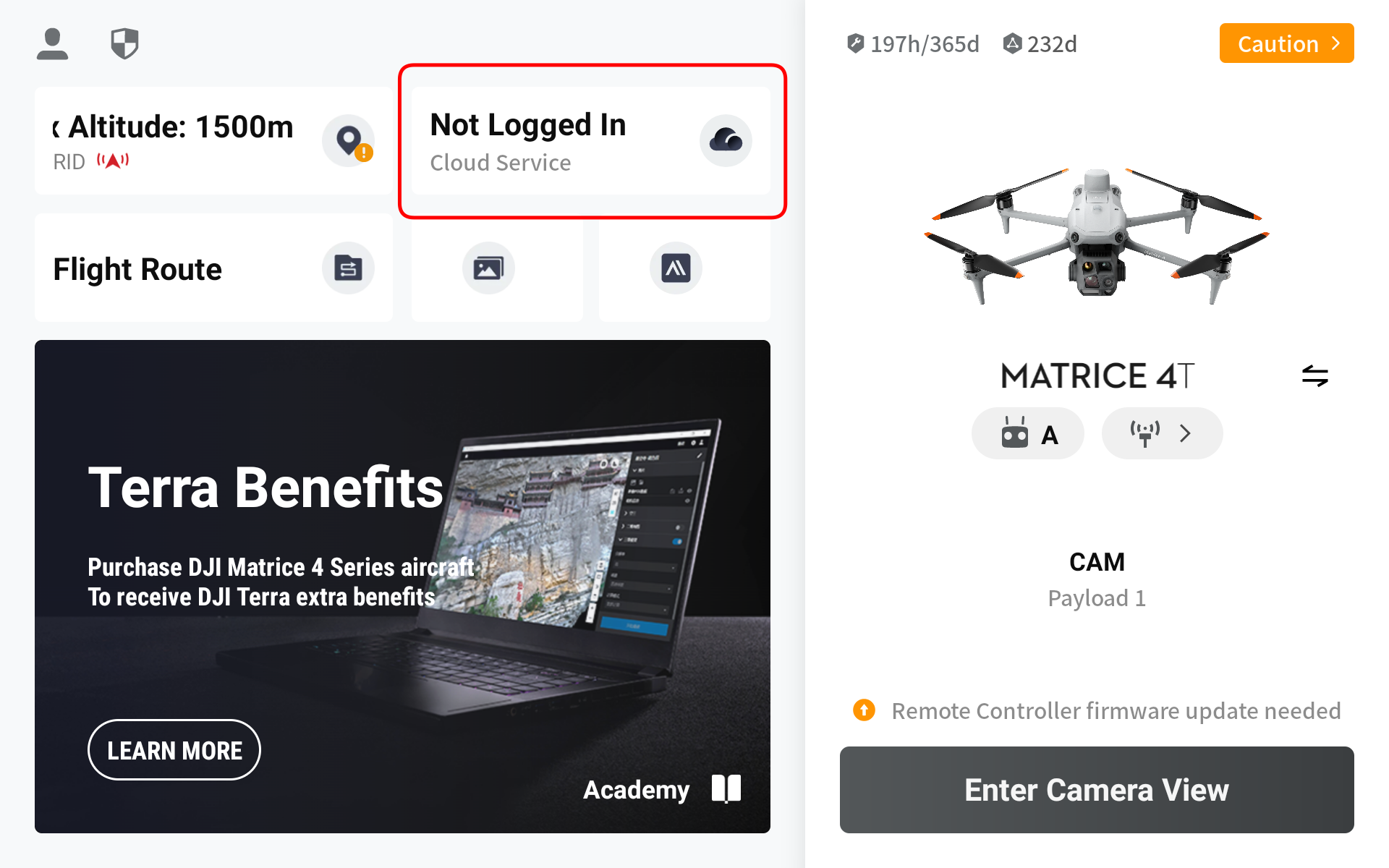
Once inside the Cloud Service configuration screen, press Open platforms.
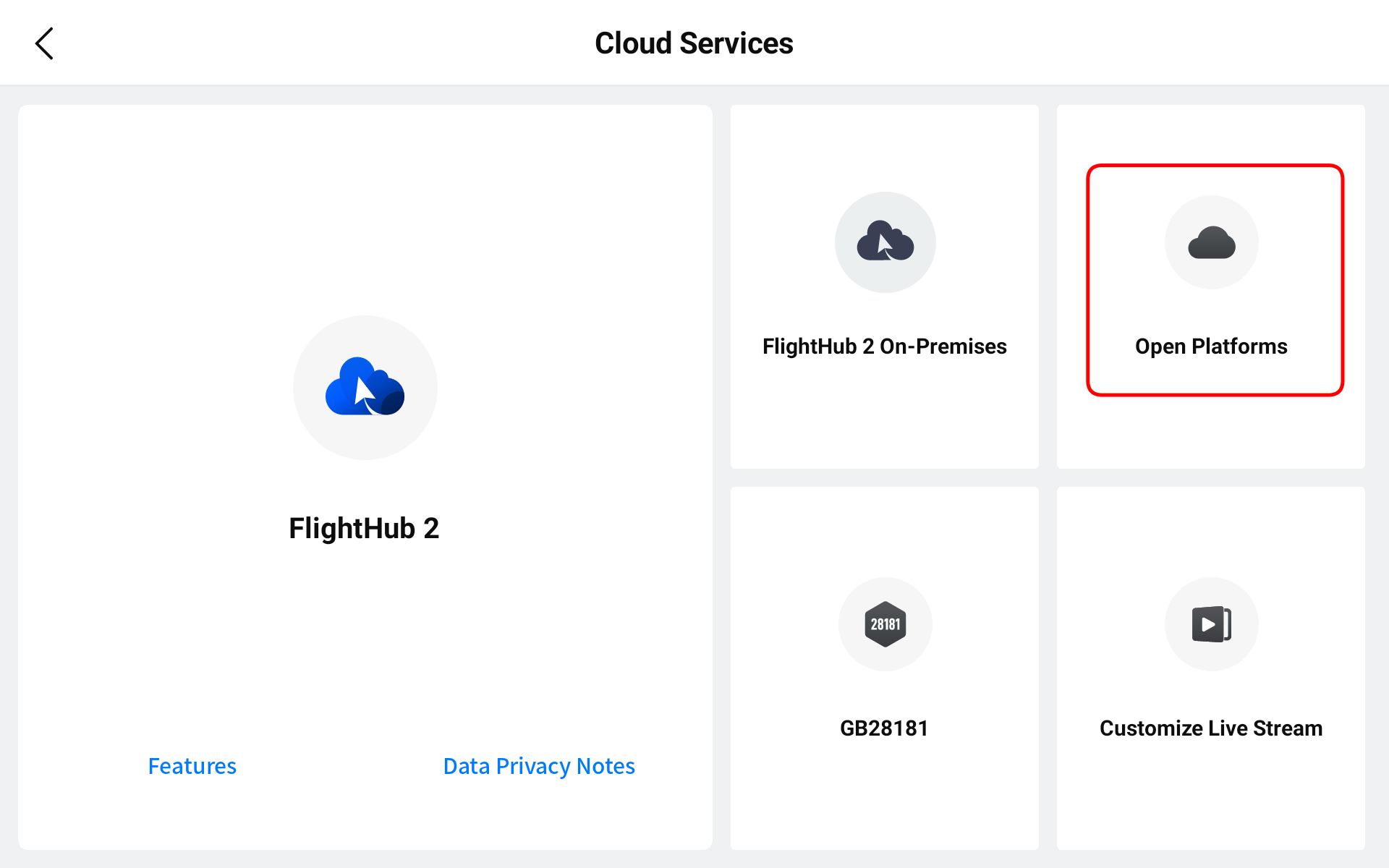
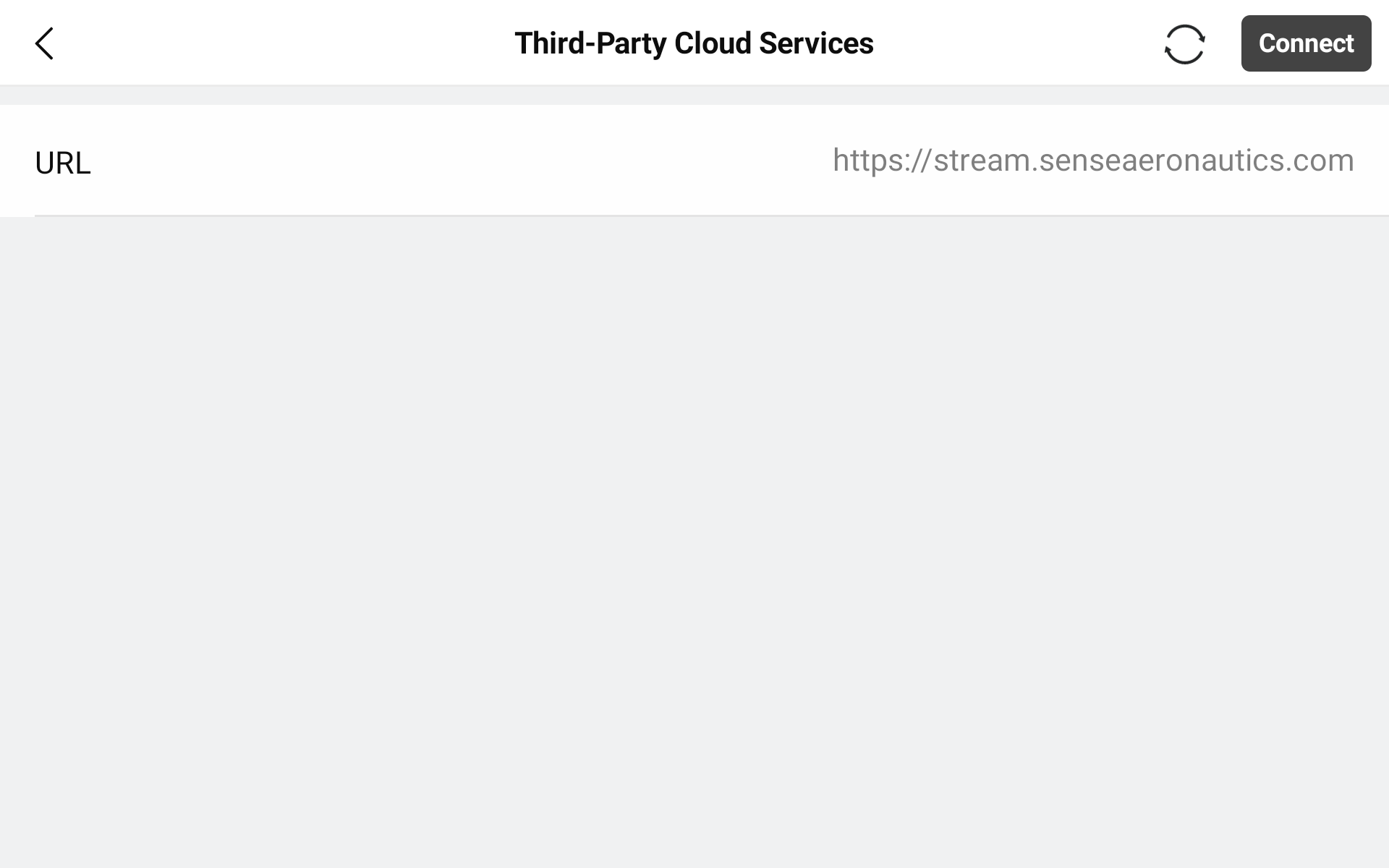
In the next screen, you will be prompted to enter the service URL and press Connect.
-
To use the Sense Aeronautics cloud service, enter:
https://stream.senseaeronautics.com -
To use a locally deployed instance of the service, enter the corresponding local IP address of your deployment (e.g.,
http://<your-local-ip>).
Login
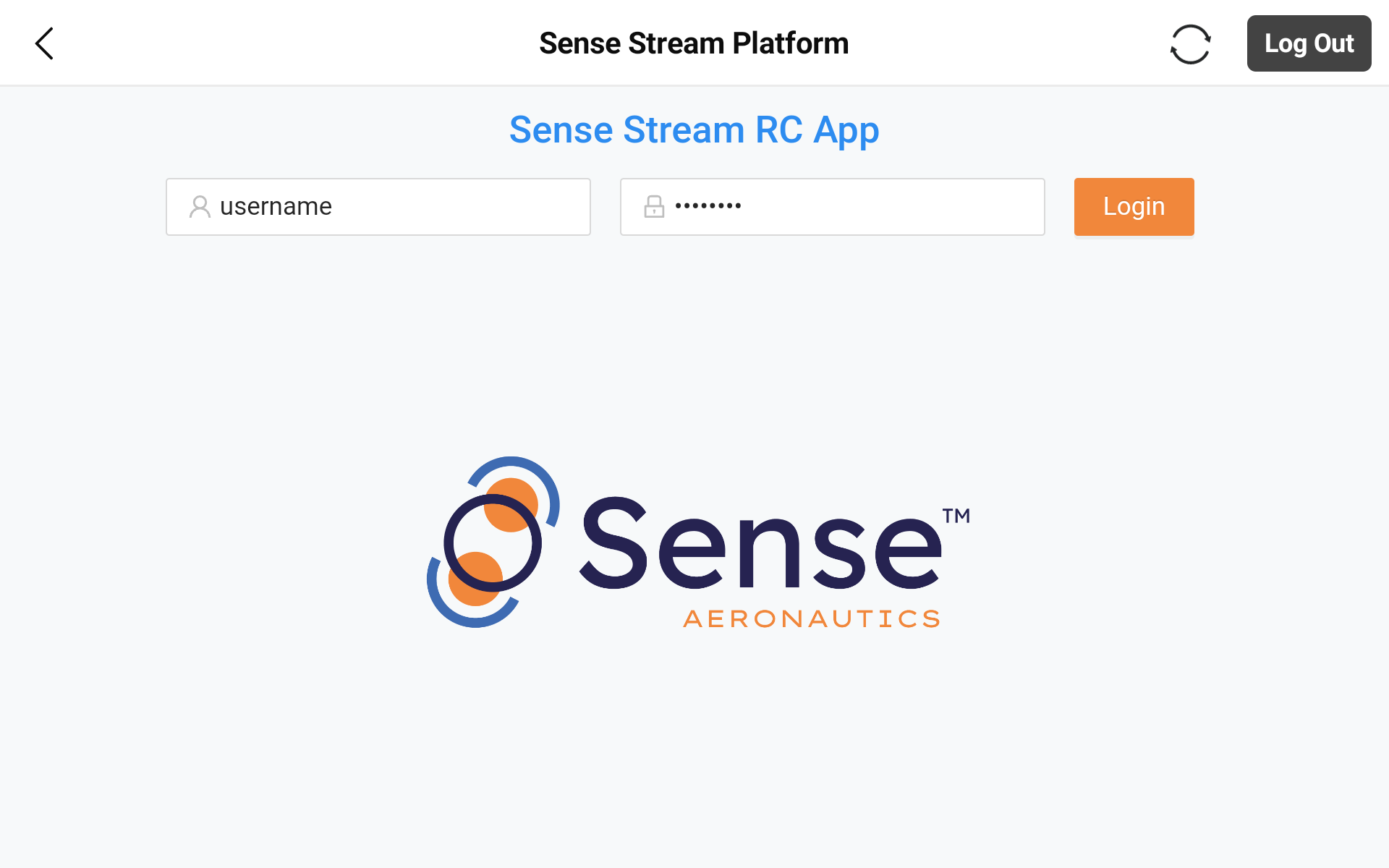
The Login screen provides access to the Pilot Page of Sense Stream.
Users must authenticate using a valid username and password before accessing streaming and AI processing features.
Note
SenseStream uses two-factor authentication. In addition to username and password, the drone's serial number must be registered with Sense Aeronautics. Only drones that have been pre-registered can access the service.
Warning
The drone must be powered on and properly connected to the DJI RC in order to use the service.
Pilot Page
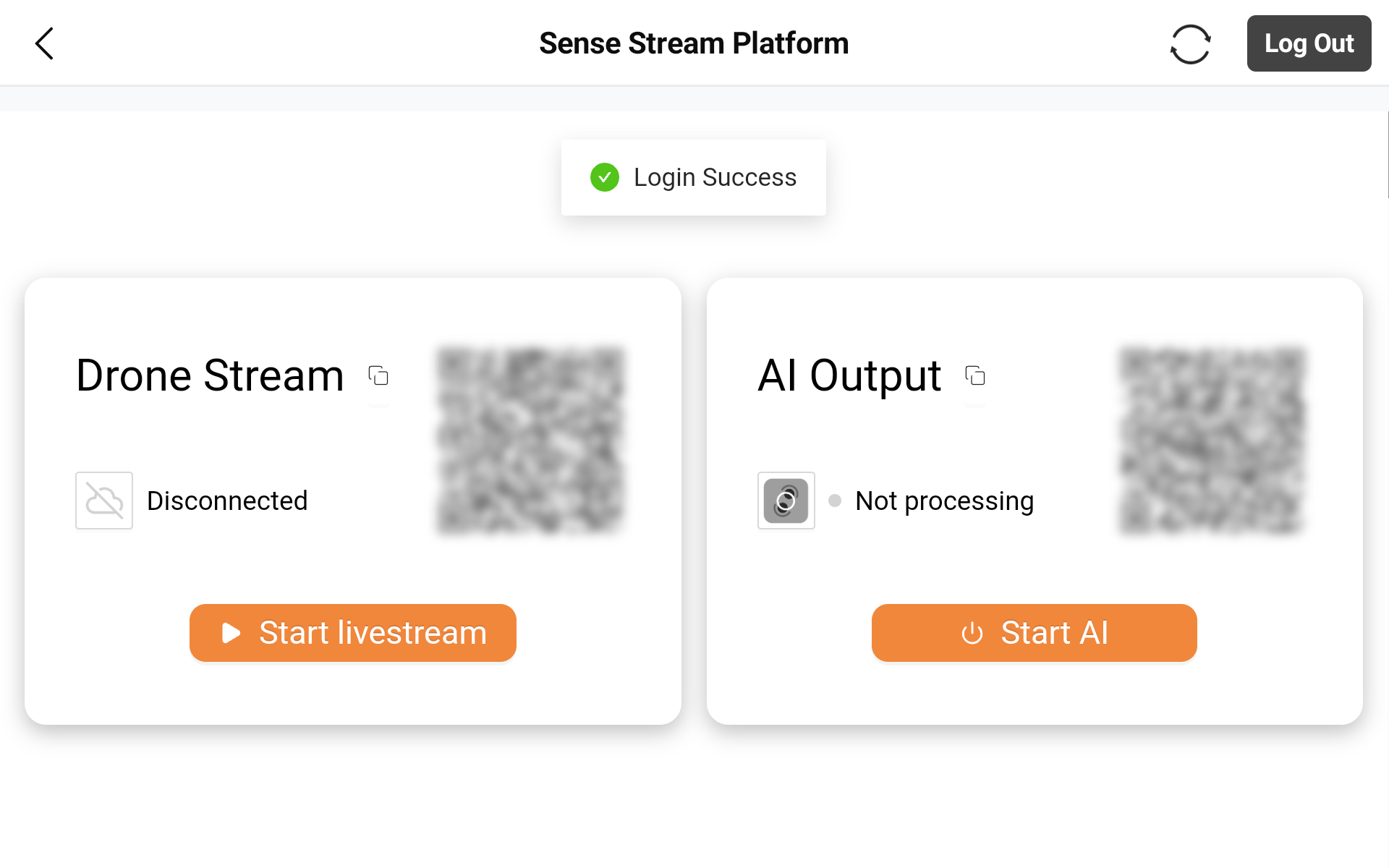
After successful authentication, the user is redirected to the Pilot Page, which contains two main functional cards:
Drone Stream – Controls live video streaming from the drone camera. AI Output – Manages the Sense Aeronautics AI processing service.
Drone Stream
The Drone Stream card allows the user to start and stop live video transmission from the drone.
- The drone must be powered on.
- A valid connection between the drone and the DJI RC must be established.
- For on-premises or private cloud deployments, the RC controller must be on the same network as the SenseStream server, either via local network or VPN.
Start Livestream
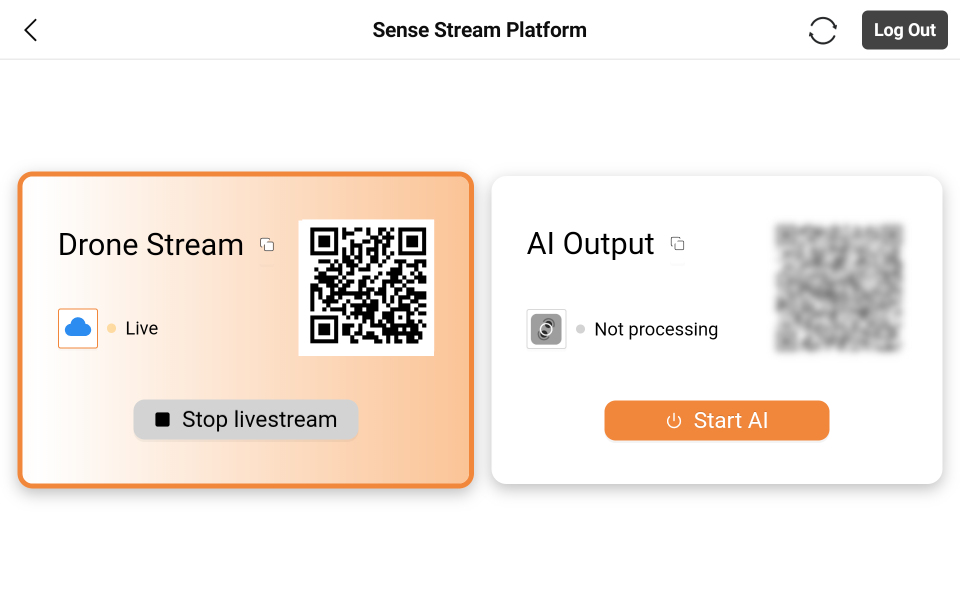
When the user presses Start livestream:
- The drone initiates a live video transmission session of the camera currently selected on the drone.
- The drone's telemetry data is also transmitted alongside the video.
- A public viewing URL is automatically generated for the livestream. It can be accessed by scanning the QR code, displayed by clicking the card title, or copied using the icon next to the title.
Tip
The public viewing URL is persistent for the same drone, so it can be reused across sessions.
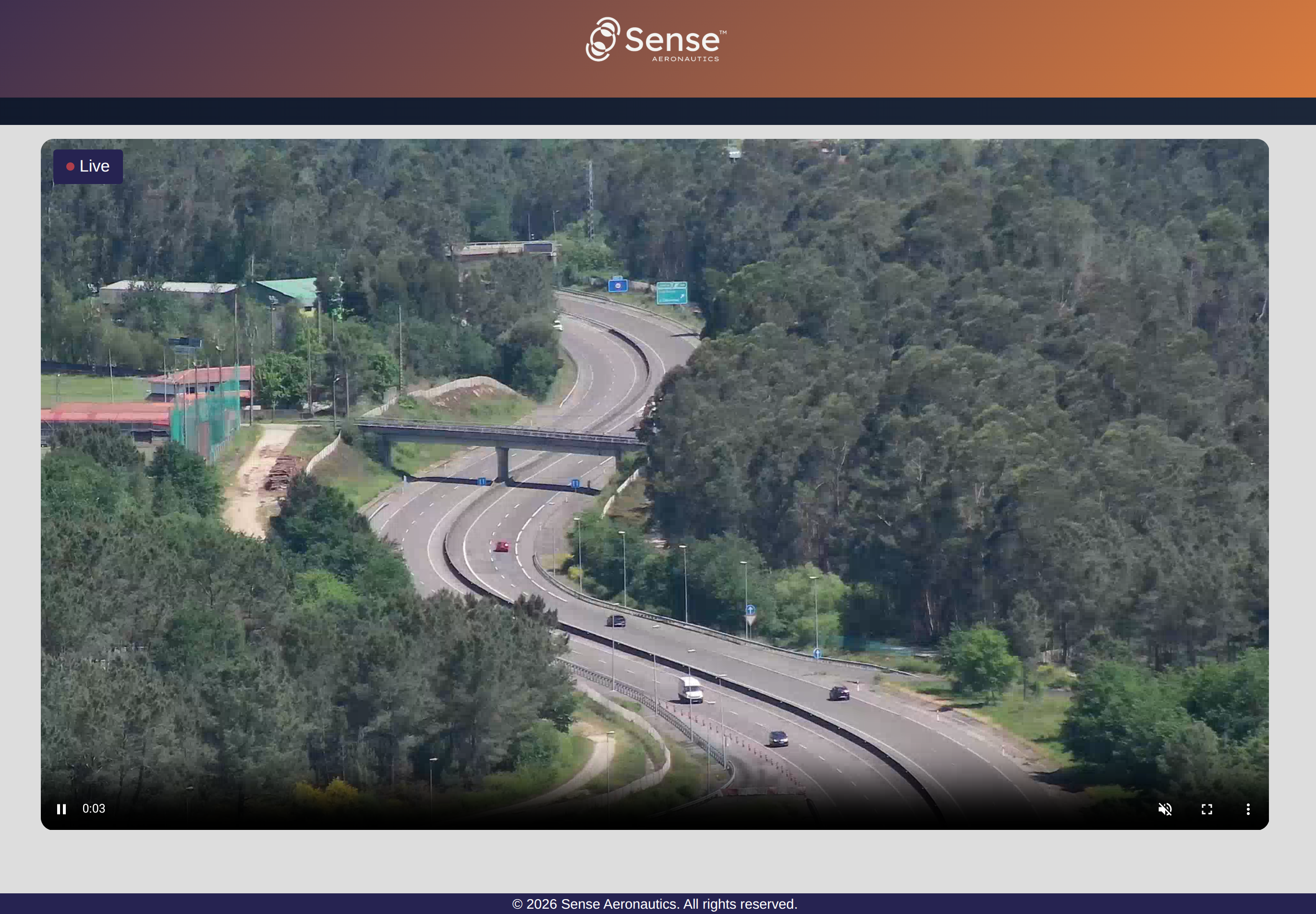
Accessing the URL opens the Sense Stream viewing platform:
To stop the transmission:
- Press
Stop livestream. - The stream will terminate.
- The card returns to its inactive state.
Camera View Controls in DJI Pilot 2
Once logged in, the user can also control the livestream directly from the Camera View screen in the DJI Pilot 2 app:
- Start or stop the livestream.
- Adjust the streaming camera's resolution and quality.
- Verify which camera is currently active.
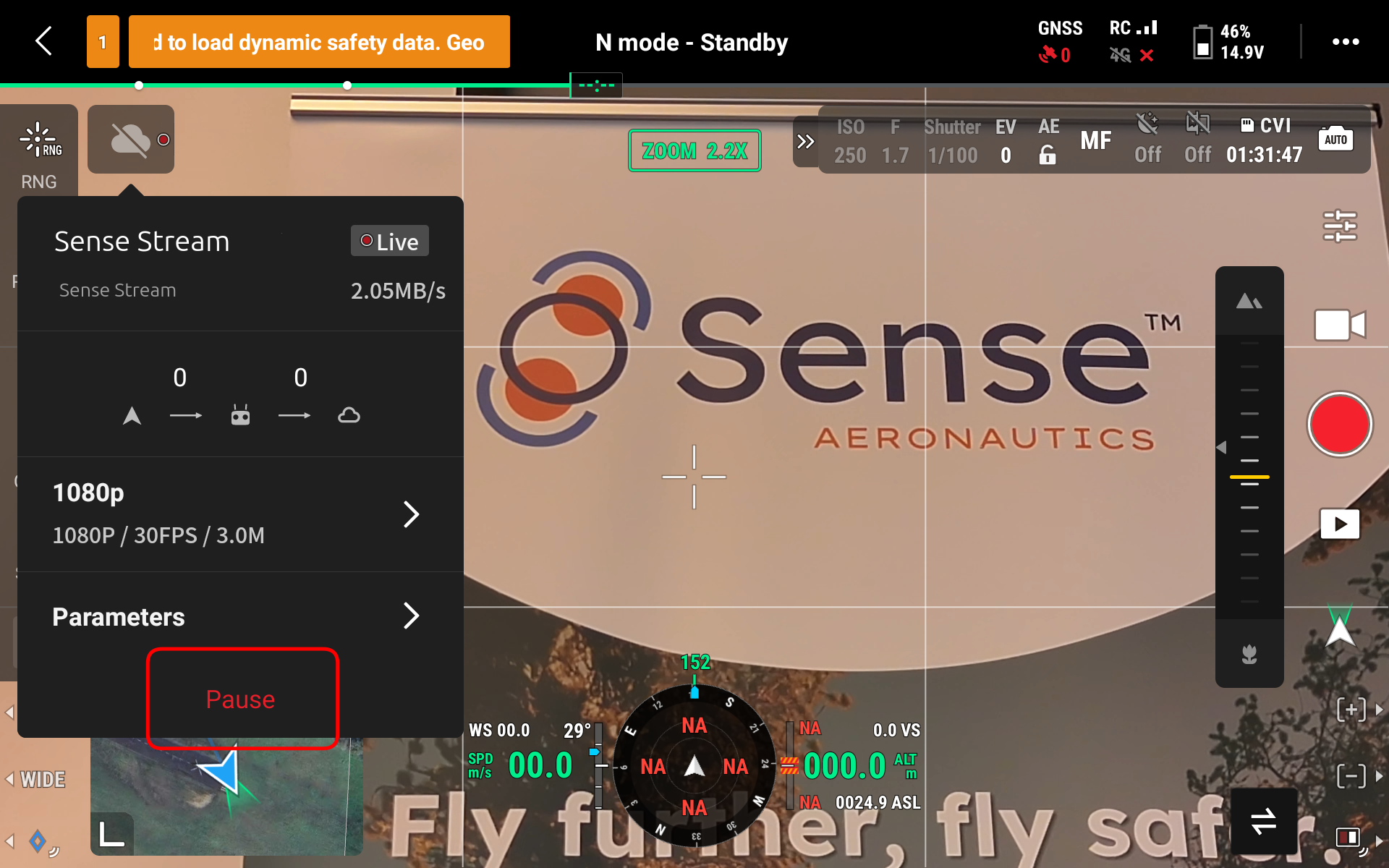
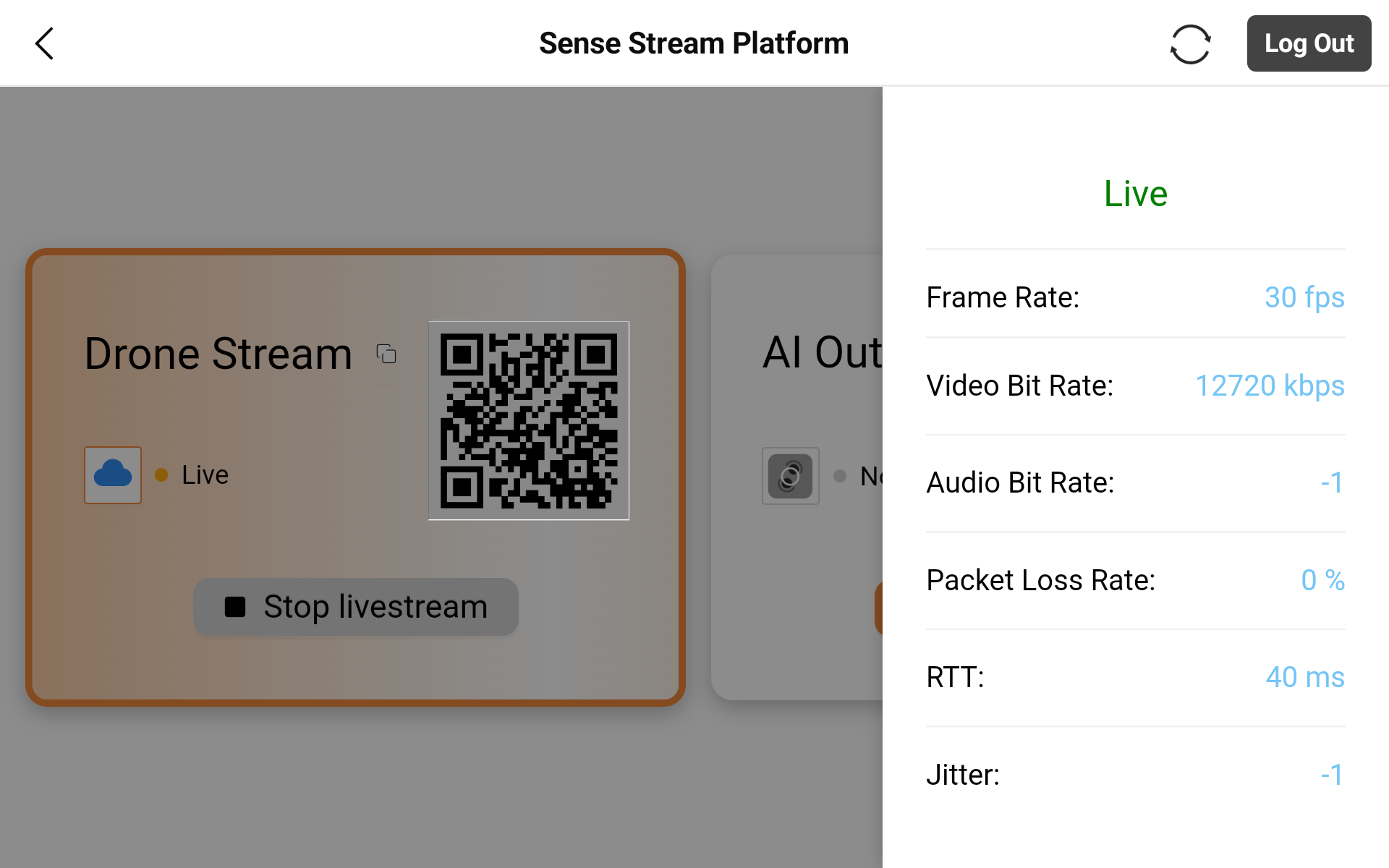
Stream Status Indicator
- The cloud icon indicates whether the drone is currently streaming.
- Clicking the icon displays technical information related to the stream (fps, video and audio bit rate, etc.).
AI Processing Service
The AI Processing Service enables real-time AI processing of the drone’s video stream.
This service performs advanced analysis on the incoming video feed and generates a processed output stream. For additional details, see the ATR product page: https://senseaeronautics.com/product-atr-3/
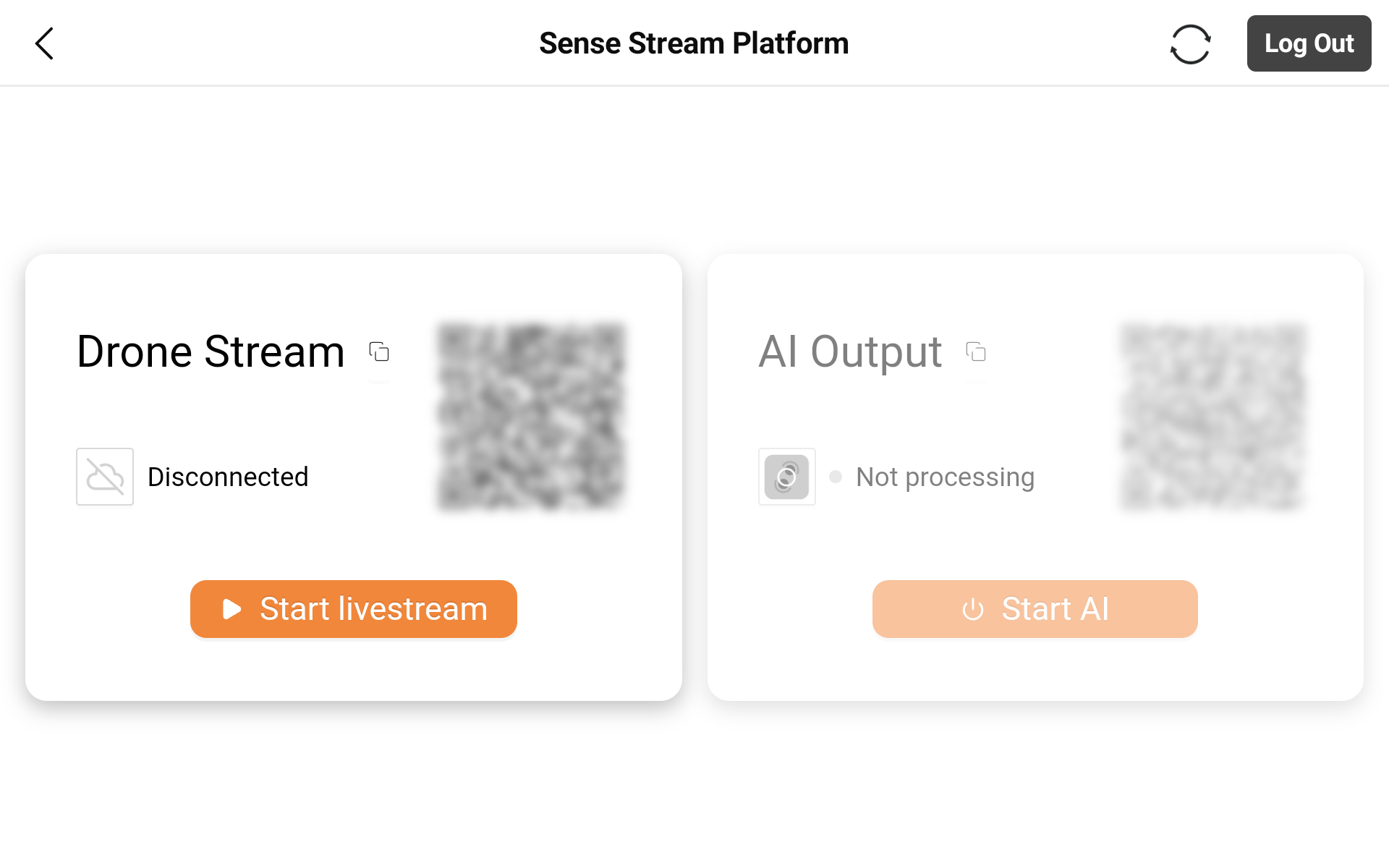
Availability
Info
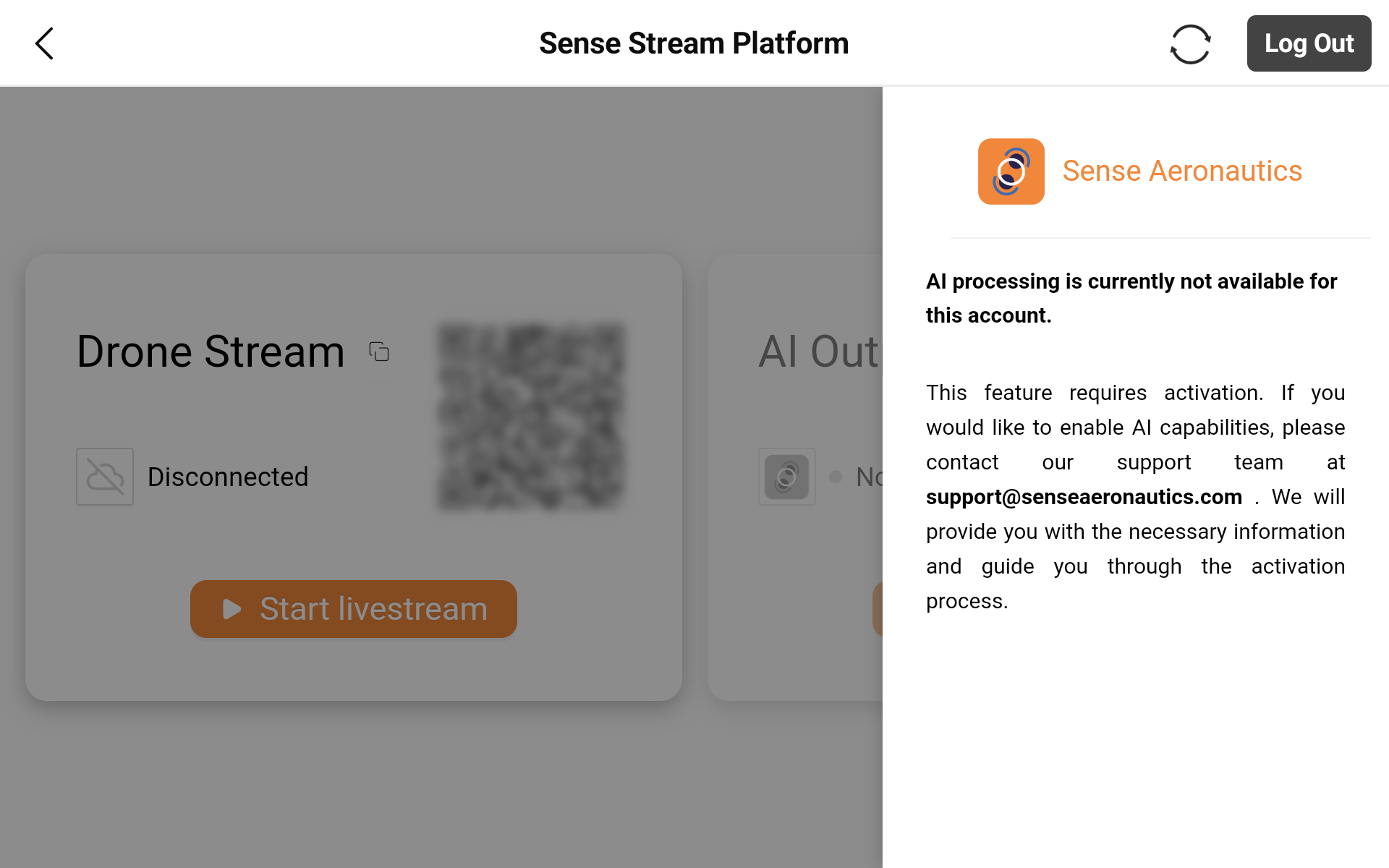
The AI Output card is only enabled if the user has purchased the AI feature.
To activate the AI feature for your account, contact: support@senseaeronautics.com
Start AI Processing
To begin AI processing:
- Ensure the drone livestream is active.
- Press
Start AI.
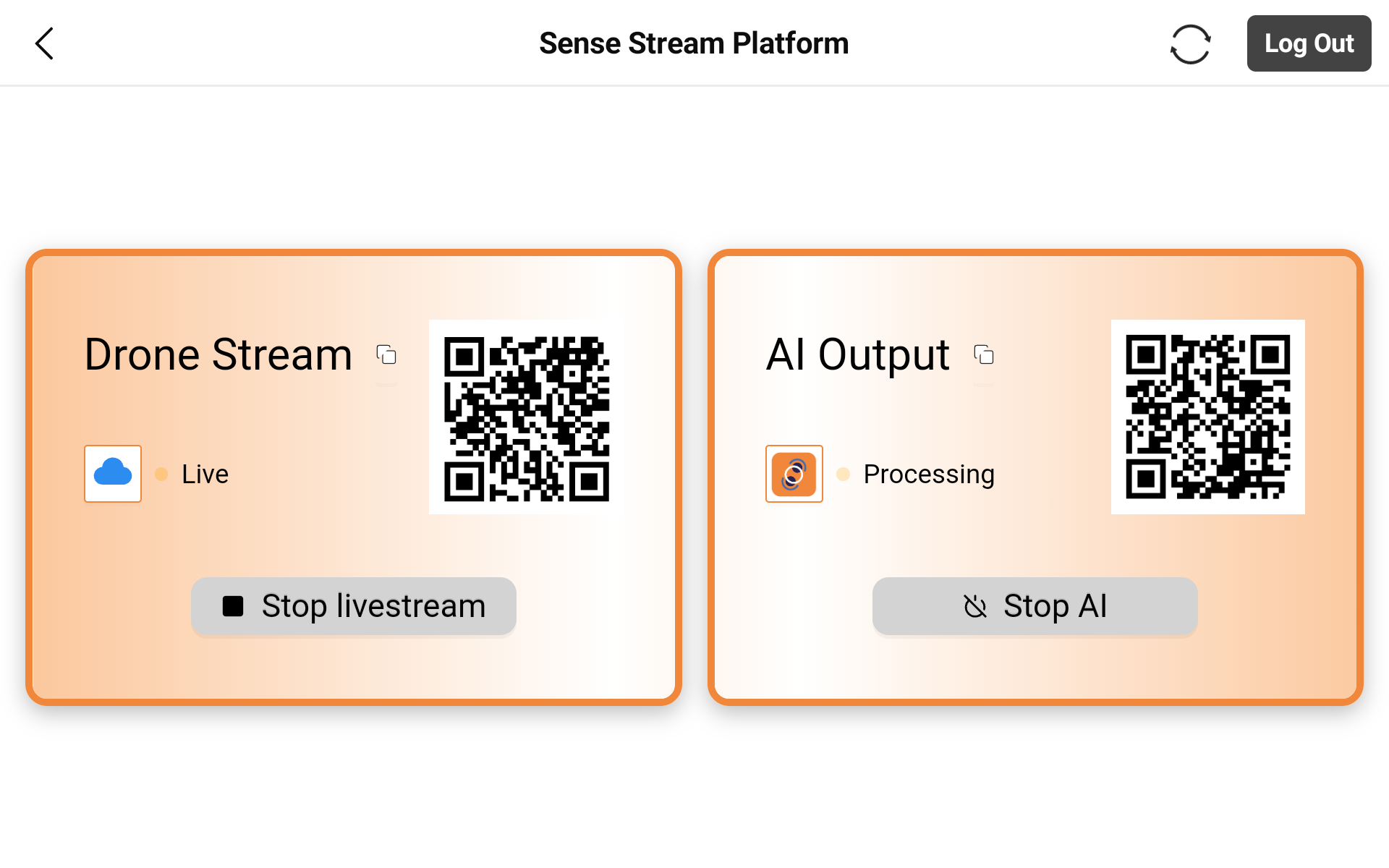
When activated:
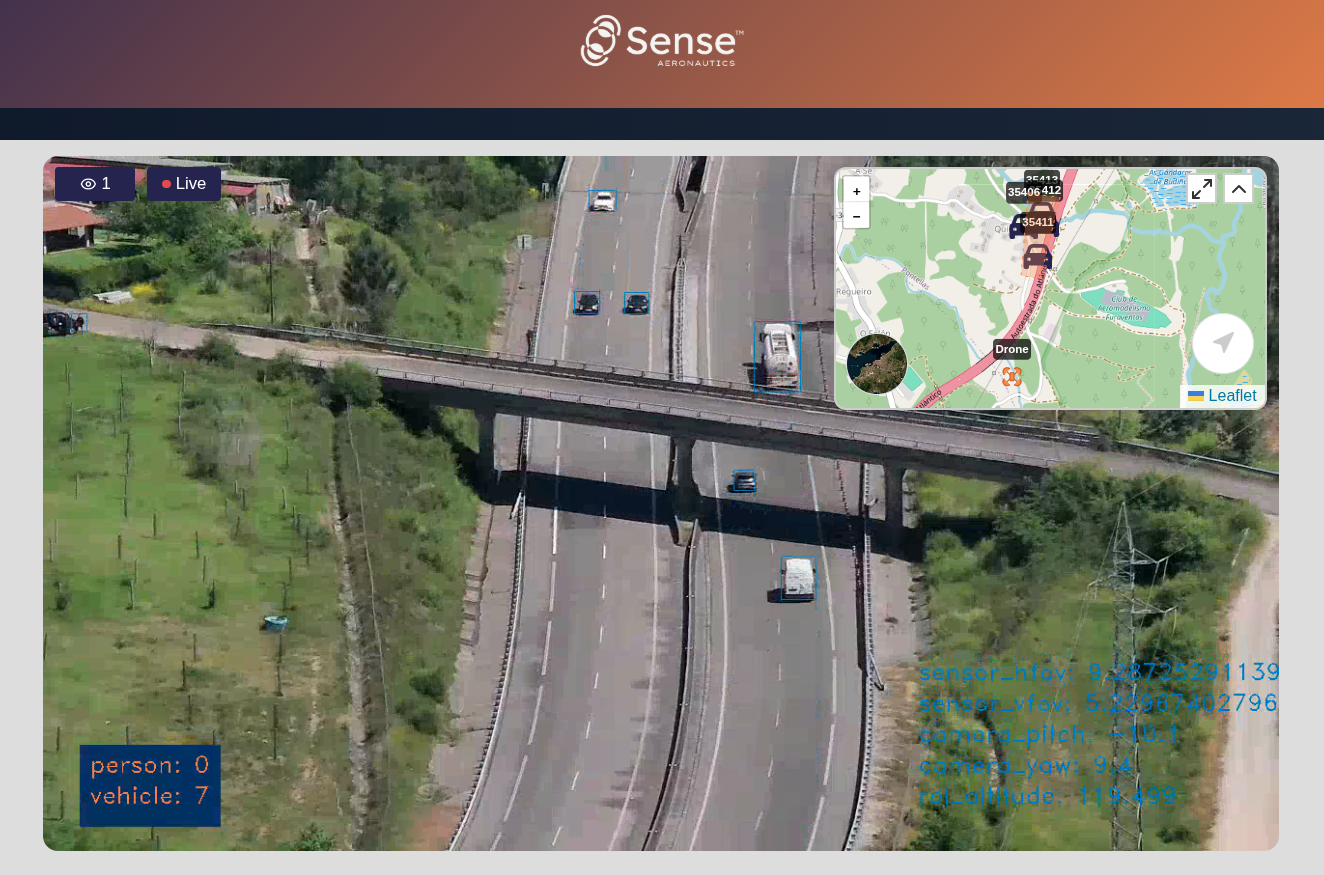
- The live video stream is processed in real time.
- As in Drone Stream card, a public viewing URL is automatically generated for the livestream. It can be accessed by scanning the QR code, displayed by clicking the card title, or copied using the icon next to the title.
Tip
The URL behavior is identical to the Drone Stream card; however, in this case, the public viewing URL is unique to each AI process.
Accessing the URL opens the Sense Stream viewing platform:
AI Processing Status
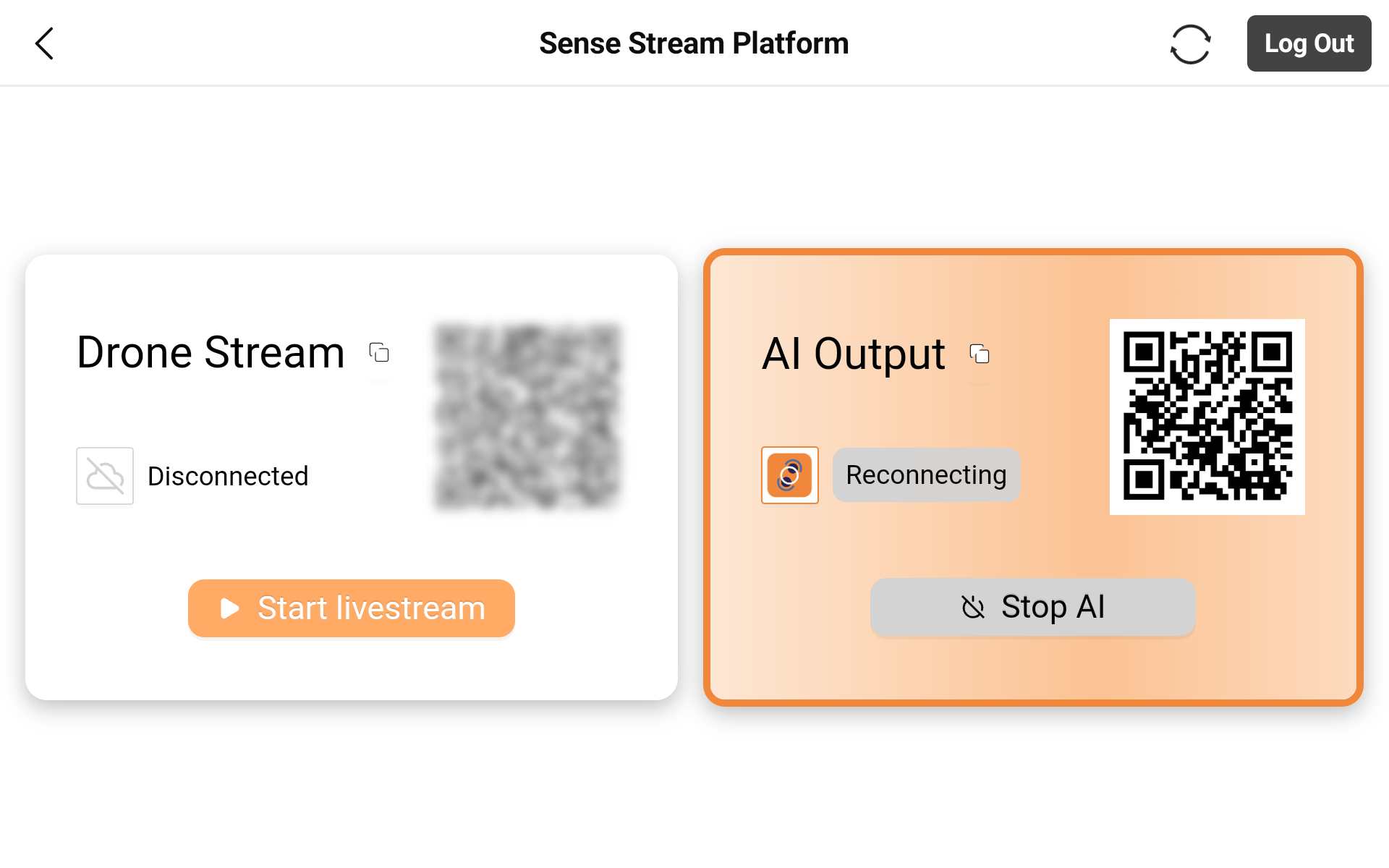
The current processing state is displayed below the card title:
- Not Processing – Service available but inactive.
- Processing – AI processing is running correctly.
- Reconnecting – The system lost connection to the drone stream and is attempting automatic recovery.
API Information
Clicking the Sense Aeronautics icon located below the card title opens a side information panel.
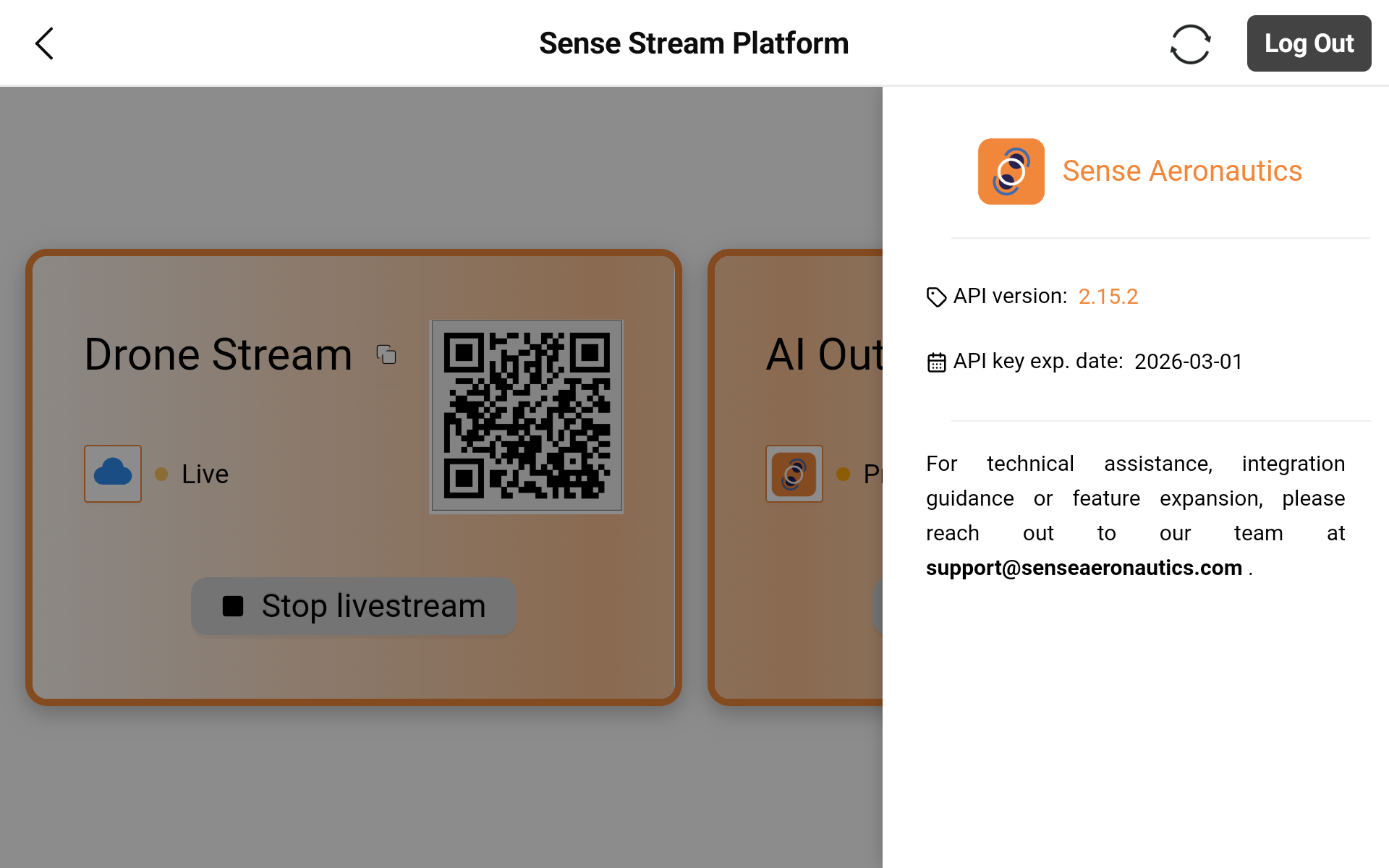
This panel:
- Displays details about the Sense Aeronautics API (version, documentation direct access and API key expiration date).
- Includes a direct link to the official Sense Aeronautics web page for extended documentation.
2.3 Error Handling
The following messages may be displayed on the Pilot Page under specific conditions:
-
AI is reconnecting. It will stop automatically if reconnection fails.
This message indicates that the AI process has temporarily lost connection, is attempting to reconnect and the user is trying to stop the process.
The process cannot be manually stopped while in the reconnecting state.
If reconnection is successful, the process returns to the running state.
If reconnection fails, the process stops automatically. -
Simultaneous active process limit reached.
The maximum number of concurrent AI processes allowed for the user has been reached.
A running process must be stopped before starting a new one. -
Usage limit reached.
The user has exhausted the available AI processing minutes included in their subscription.
No new AI processes can be started until additional usage is purchased or the quota is renewed.
3. SenseWeb
In addition, users may access SenseWeb, a browser-based frontend that provides extended monitoring and management capabilities.
The platform allows users to:
- View and manage livestream sessions.
- Access recordings.
- Manage and review AI processes.
- Generate and consult reports.
The Web Platform is accessible at: front.senseaeronautics.com
For detailed information about features and usage, refer to the dedicated SenseWeb documentation.