Reports
The Reports page provides a centralized view of all available reports generated from processed sources. It allows users to filter, sort, and manage their reports efficiently.
List reports
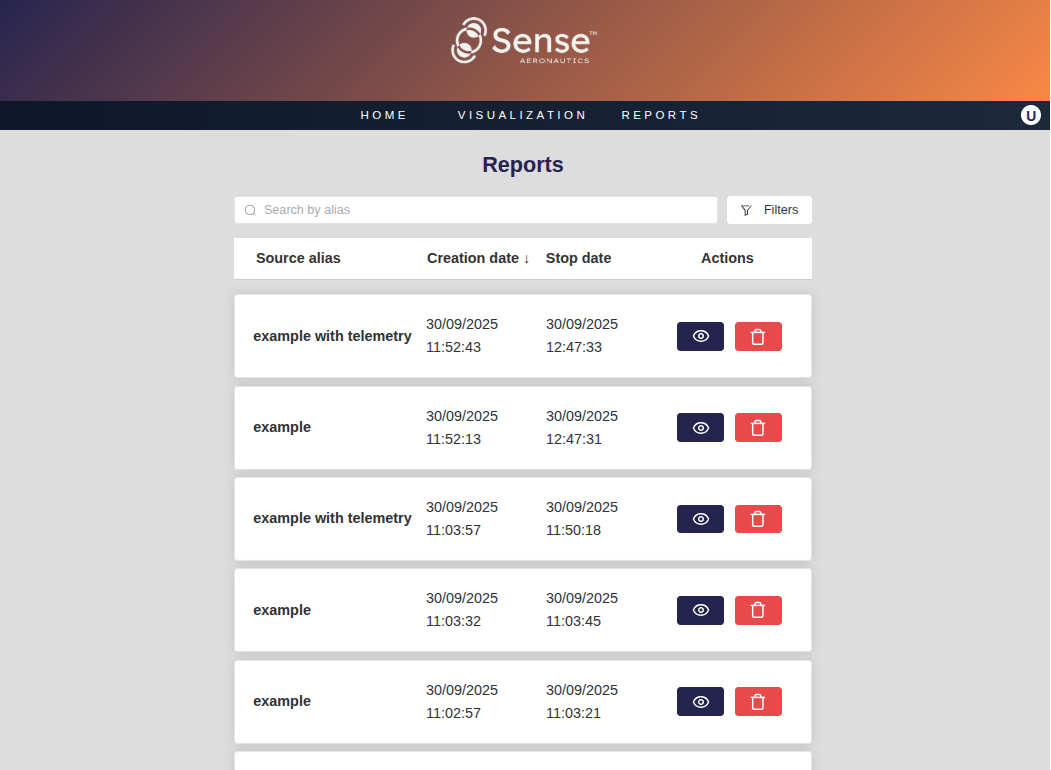
The reports are displayed in a card grid, with each card containing:
- Source alias — name of the source associated with the report.
- Start time — start date and time of the process.
- Duration — total duration of the process.
- Processed — checkbox used to indicate if the report belongs to a processed source.
- Actions — buttons for accessing the process video and insight reports. A new insight report is generated each time the stream is processed. A video of the processed stream is also saved when using Sense Aeronautics' media server. Input streams which used Sense Aeronautics' media server are also displayed on this list, with only their video available.
Note
For more information on Sense Aeronautics' media server integration, see this page
Using Filters
Above the reports list, a filters bar helps quickly narrow down reports:
-
Search by alias — type any text to filter reports by source alias.
-
Filters button — opens the advanced filters panel:
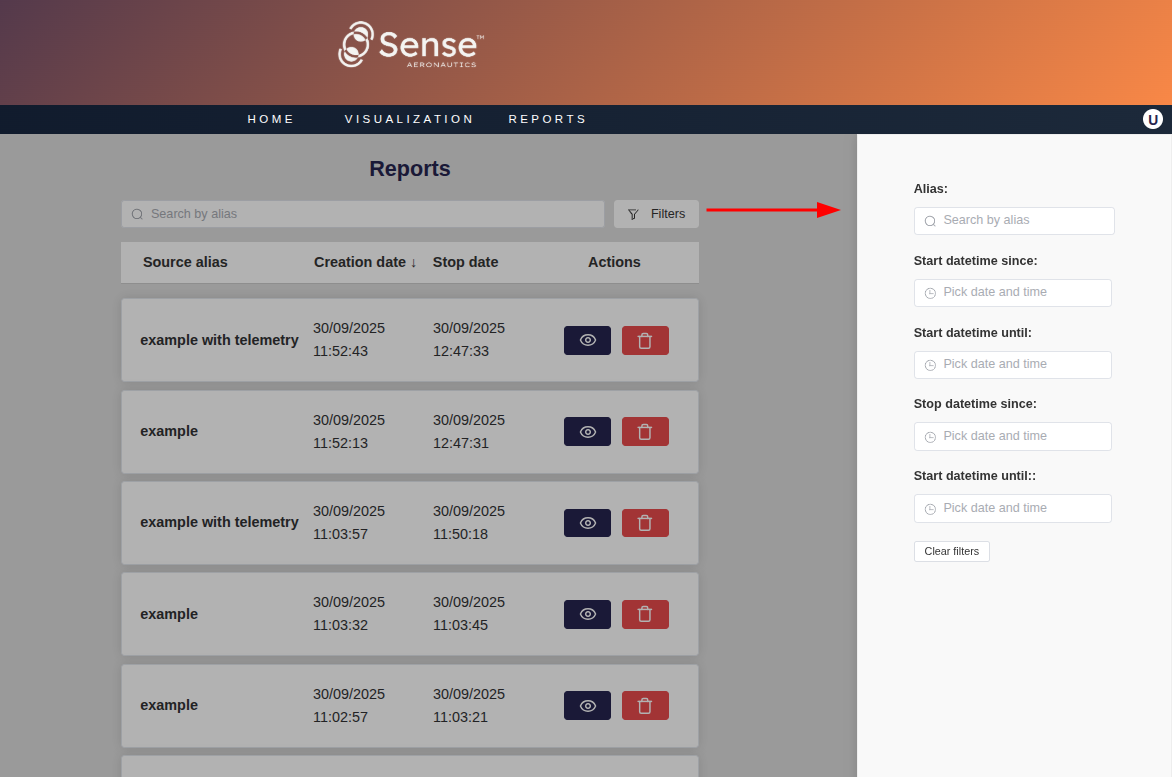
- Alias — match source aliases containing the input text.
- Start datetime from — filter reports starting on or after the selected date and time.
- Start datetime to — filter reports starting on or before the selected date and time.
- Duration — slider to filter by duration. Max value corresponds to the maximum report duration.
- Processed — checkbox to filter reports that are processed.
- Clear filters — reset all active filters.
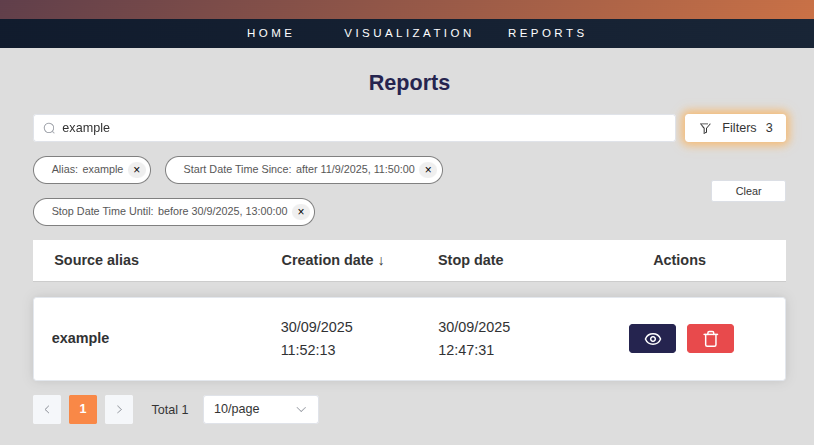
Filters can be combined. Active filters are highlighted with a count on the Filters button.
Sorting
Reports can be sorted by clicking any column header:
- Source alias — alphabetical order (A–Z / Z–A)
- Start time — newest–oldest or oldest–newest
- Duration
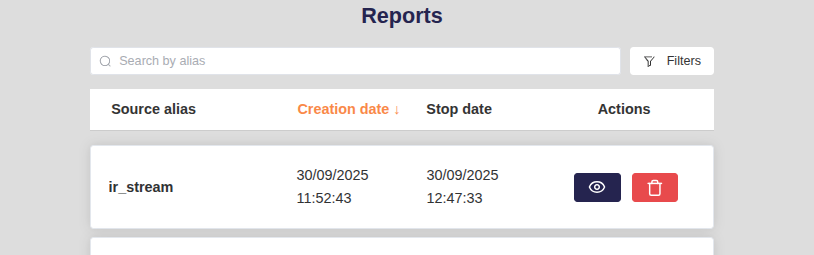
Click a column header once to sort ascending (↑) and again to sort descending (↓). The current sort direction is shown with an arrow next to the header name.
Tip
Sorting works together with filters — first filter, then sort the filtered results.
Manage reports
Each report card provides the following actions:
View report
Open the report in the insight report page for detailed insights.

Playback processed video
If the recording is available, display the processed video in a new tab.
